

Notion is the app that helped me organise my entire life. If you’ve ever wondered how to use Notion effectively, this article is for you — in the first part, I describe my personal workflow in every detail, and in the second, I break down the tools and features I use within Notion.
Before you dive in: If you end up liking Notion, please consider signing up through my referral link. You’ll get $10 in credits for later use, and I’ll receive a small reward from Notion too. It costs you nothing, and it gives me one more reason to keep writing about Notion. 🙂
Organising Life as a Personal Goal
I’m the kind of person who can’t let things go. My mind constantly churns through unfinished tasks, and I keep creating new ones that only fuel the ever-burning fire of stress.
That’s why I’m perpetually searching for ways to compartmentalise my life, write everything down clearly, and get all those swirling thoughts out of my head. I’ve tried just about everything.
What Have I Already Tried?
Before I landed on Notion, I went through various phases of personal management. I should mention upfront that I’ve always gravitated — sometimes unknowingly — towards the GTD (Getting Things Done) method. It’s been a constant companion in one form or another.
For several years, I carried two little books with me everywhere: a paper diary and a notebook. I jotted down everything that mattered — tasks that needed doing, scheduled meetings, and ideas that popped up throughout the day.

But paper isn’t flexible enough. Sooner or later, I got tired of constantly rewriting my list of active projects. The diaries ended up splattered with coffee, crumpled like lunch wrappers, and eventually stopped making sense as a comprehensive organisational tool. I simply couldn’t keep them tidy.
These days, I only use a paper diary to write down tasks for specific days, which I pull from another system. What followed were several years of trying various apps and systems, but none of them ever felt quite right.
How Do You Record Absolutely Everything?
The fundamental problem with most apps is that they specialise in just one particular way of recording information. Some are better suited for business management, others excel at quickly capturing thoughts, and then there are those that focus mainly on design.
I kept asking myself: Is my system actually making me more productive and organised if I have to spend time keeping ALL these apps up to date?
Using multiple apps inevitably means that sooner or later, one of them falls by the wayside, and I lose trust in the entire system. Then I delete apps and start all over again.
Which Apps Did Notion Replace for Me?
I was using a whole range of apps that weren’t compatible with each other. I make a living from writing and working online, so tools for creative writing and client management are absolutely essential to me.
My previous workflow looked like this:
Writing: Google Docs, Evernote, Microsoft Word
I never had a favourite writing tool. What annoyed me about all of them was the overwhelming number of buttons and the time I spent formatting every single time. I work on a Mac, but I ruled out Pages almost immediately.
I wrote in Evernote for a while, but soon realised it’s more of a note-taking tool than a creative writing one. Before Notion, I was using Google Docs and Microsoft Word. Both look similar, but clients tend to prefer one or the other.
Task Management: Trello, Apple Reminders
Everyone uses Trello, so I jumped on the bandwagon too. The problem was that with so many ongoing projects and their long-term timelines, I ended up with a sprawling collection of boards where I tracked project statuses and current tasks.
Trello is a brilliant tool, and since Notion also offers a Kanban-style view, I stuck with that approach for a while longer.
For random thoughts that came to me during the day and shopping lists, I used the native Apple Reminders app. I regularly pruned these and kept them current.
Personal CRM and Database Management: Google Sheets, Airtable
I’m one of those people who has a spreadsheet for everything, including a personal system for managing “relationships” with people and clients.
I relied heavily on Google Sheets and Airtable — both have their strengths and weaknesses. Although I haven’t migrated my existing spreadsheets to Notion yet, any new ones I create live exclusively in Notion.
Notes and Important Information: Evernote, Mac Stickies, Apple Notes
I frequently scan documents, photograph invoices, and scribble down random notes that need sorting later. Evernote served as my inbox — I’d upload documents from my phone and then organise them on my computer.
Mac Stickies were for tasks that needed doing but didn’t fit neatly into any other app. Apple Notes acted as a catch-all inbox for random notes of all kinds, which I’d then sort and process further.
Notion — All Your Apps in One
As you’ve probably gathered, my workflow was far from ideal. I only realised just how fragmented my attention was across all these apps when I sat down and wrote it all out.
On top of that, I was using a combination of two methods: Kanban and GTD. It wasn’t a great mix.
Then Notion came along, and just like that — almost like a snap of the fingers — I found a solution that, for the first time ever, makes me feel like I’m truly in control of my time with everything perfectly organised.
Let me introduce you to Notion, the all-in-one app that organised my life down to the last detail.
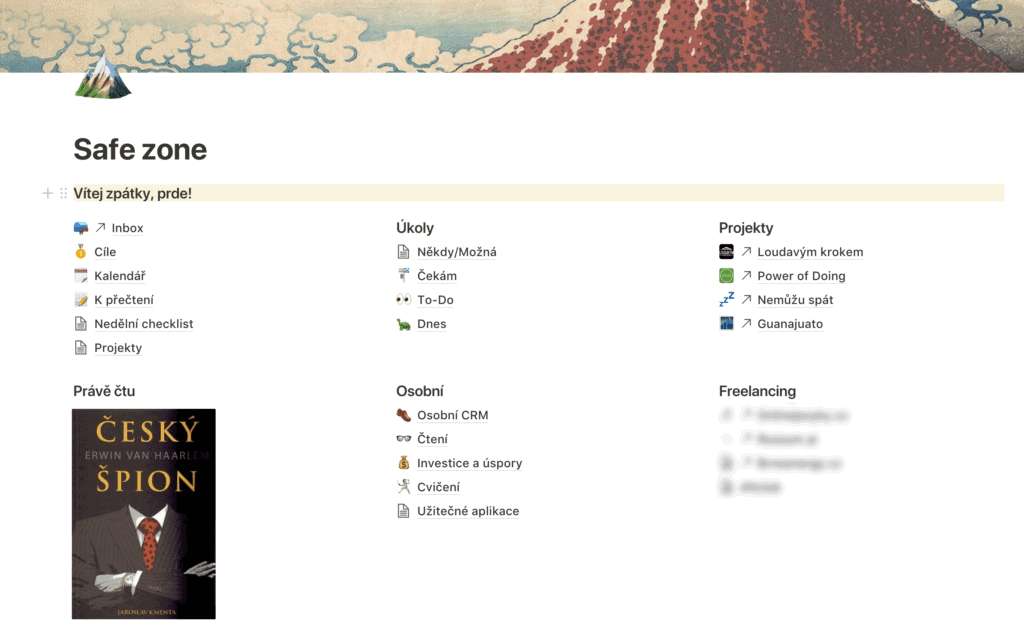
What sets Notion apart from other tools is that it becomes whatever you want it to be. You can build a system as complex or as simple as you like, perfectly tailored to your needs. Notion can be used for anything — from managing a recipe collection to running a complex business structure.
The fundamental building element of the app is a “block,” which can serve a wide range of purposes. A block can be a heading, a paragraph, an image, or an entire database with dozens of possible ways to view it.
When people ask me what system I’d compare Notion to, I say: “Notion is like Lego. You get an empty playing field and as many bricks as you want. It’s entirely up to you what you build.”
At first glance, Notion looks like a simple app. That’s because the creators did a masterful job with the design. You know Dropbox Paper? Notion is even more beautiful.
In Notion, you can literally recreate copies of all the apps you currently use. Evernote? Five minutes. Trello? Three clicks.
How I Organised My Notion Setup
There are plenty of descriptions online about what Notion can do and how to work with it. The truth is, the best way to learn Notion is by trying things out yourself. Today, I want to give you inspiration for how to use Notion for managing your personal life and a small team.
I created a main page in Notion (called “Safe Zone”) and split the screen into three columns.
- Input capture, strategic planning, current mini-projects
- GTD method (task management), interests, investments, and health
- Work and personal projects
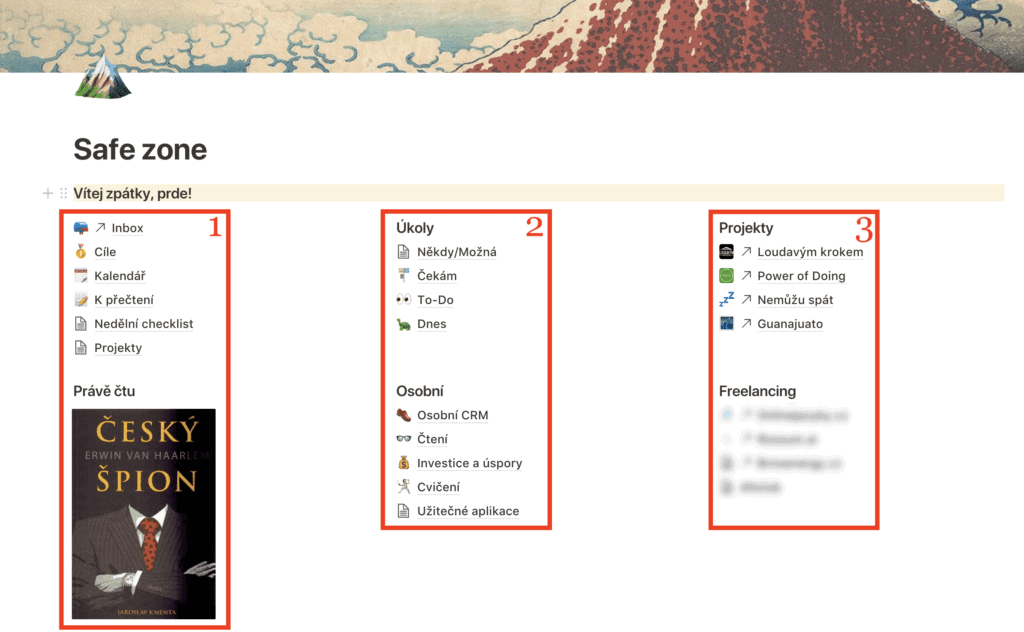
My workflow is constantly evolving and has its quirks. But if you genuinely like it, you’re welcome to copy my entire Notion dashboard.
How I Capture Tasks and Ideas in Notion
The backbone of my workflow is the Inbox tab, which sits in my menu, favourites, and right at the top of my main page. I simply dump all tasks, ideas, and thoughts that come to me throughout the day into this one place. It’s the only collection point I use now.
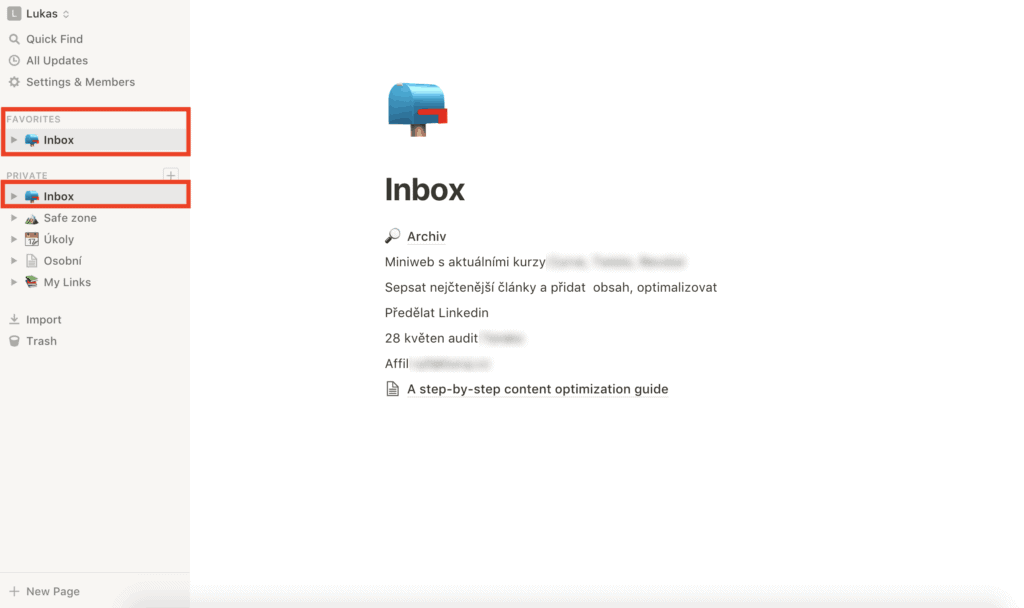
I often type into it while walking, in a taxi, or even in the bathroom. But nothing stays in there for more than a few days because I regularly go through everything and sort it. Items then move into one of these folders as simple to-do checkbox blocks:
- Someday/Maybe — ideas I’d like to pursue, but now isn’t the right time
- Projects — where I list project names
- Waiting — tasks where I’m waiting on someone else to take action
- To-Do — tasks and ideas I’ve decided to tackle as soon as possible
- Today — tasks that absolutely must be done today
Time-sensitive tasks — things that need to happen on a specific day or at a specific time (a doctor’s appointment, sending a report) — don’t go into folders. Instead, I log them in a dedicated Tasks database. I assign a specific date to each task, and when that day arrives, it automatically appears in my Today folder.
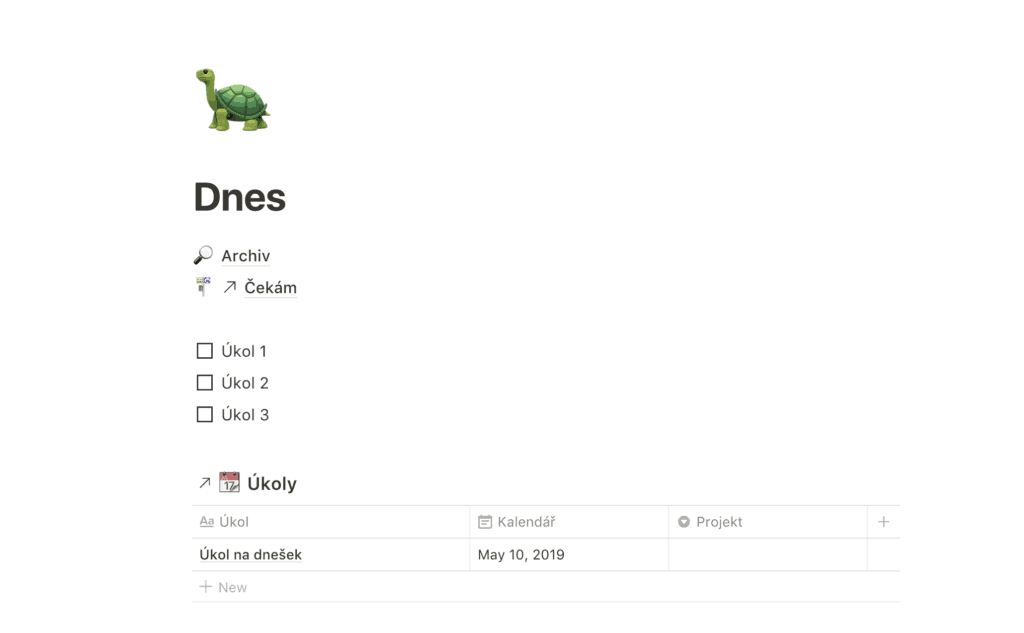
The Projects folder is for anything that requires at least two steps to complete. Each entry describes what the project will look like when it’s finished. If I find a task in my Inbox like “article about Notion,” I add it to Projects and simultaneously create a first action step in the To-Do folder: “prepare a draft of the Notion article.” I keep going like this until all the tasks in the project are done. Once complete, it goes to the Archive.
Every evening, I review my To-Do folder and pick the tasks I need to tackle the following day, moving them into the Today folder. That’s the only folder I open in the morning. It gives me a clear roadmap for the day ahead.
How I Stay on Top of Personal Matters
I love data, and the more historical data I have, the better conclusions I can draw. That’s also why I’ve been wearing a smartwatch every single day for over six years — it tracks everything from steps taken to resting heart rate.
Until recently, though, I was far less successful with seemingly trivial things — like remembering family and friends’ birthdays, saving notes from books I’ve read, or regularly reviewing investments and savings. So I created the following categories in Notion.
Personal Contact Manager and Relationship Tracker
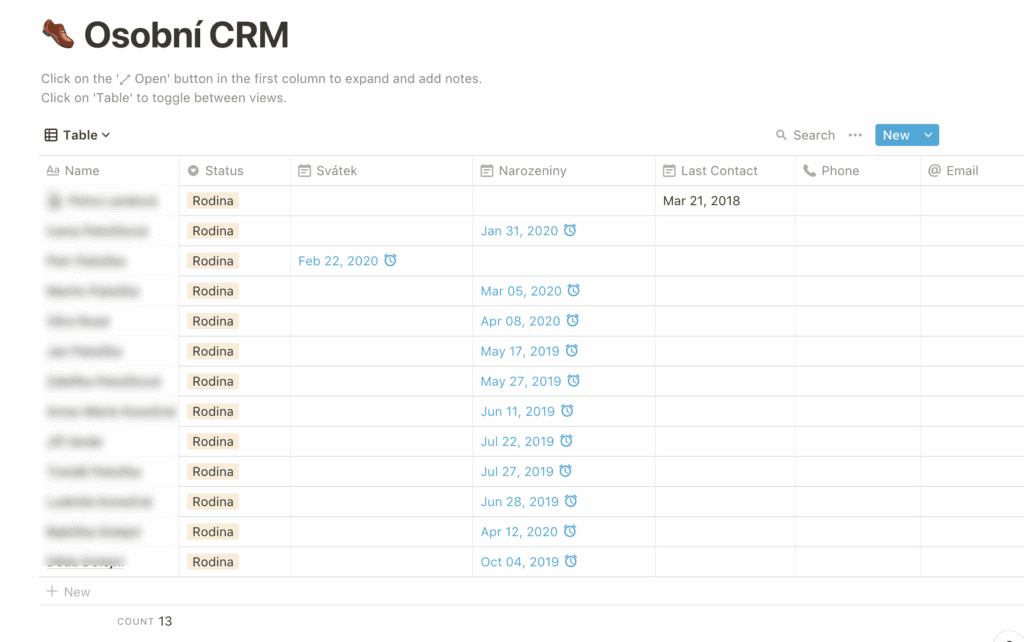
Recording details about family, friends, and clients in a spreadsheet — including things like when you last spoke and what you talked about — might sound a bit odd. But for scatterbrained people like me, it makes life immeasurably easier.
In my case, I built a database listing everyone I interact with regularly. In the screenshot, you can see the family filter applied, along with the most important piece of information: everyone’s birthday — plus a reminder notification set to alert me two days in advance.
A raw database can be hard to scan at a glance, so I created a second view in calendar format.
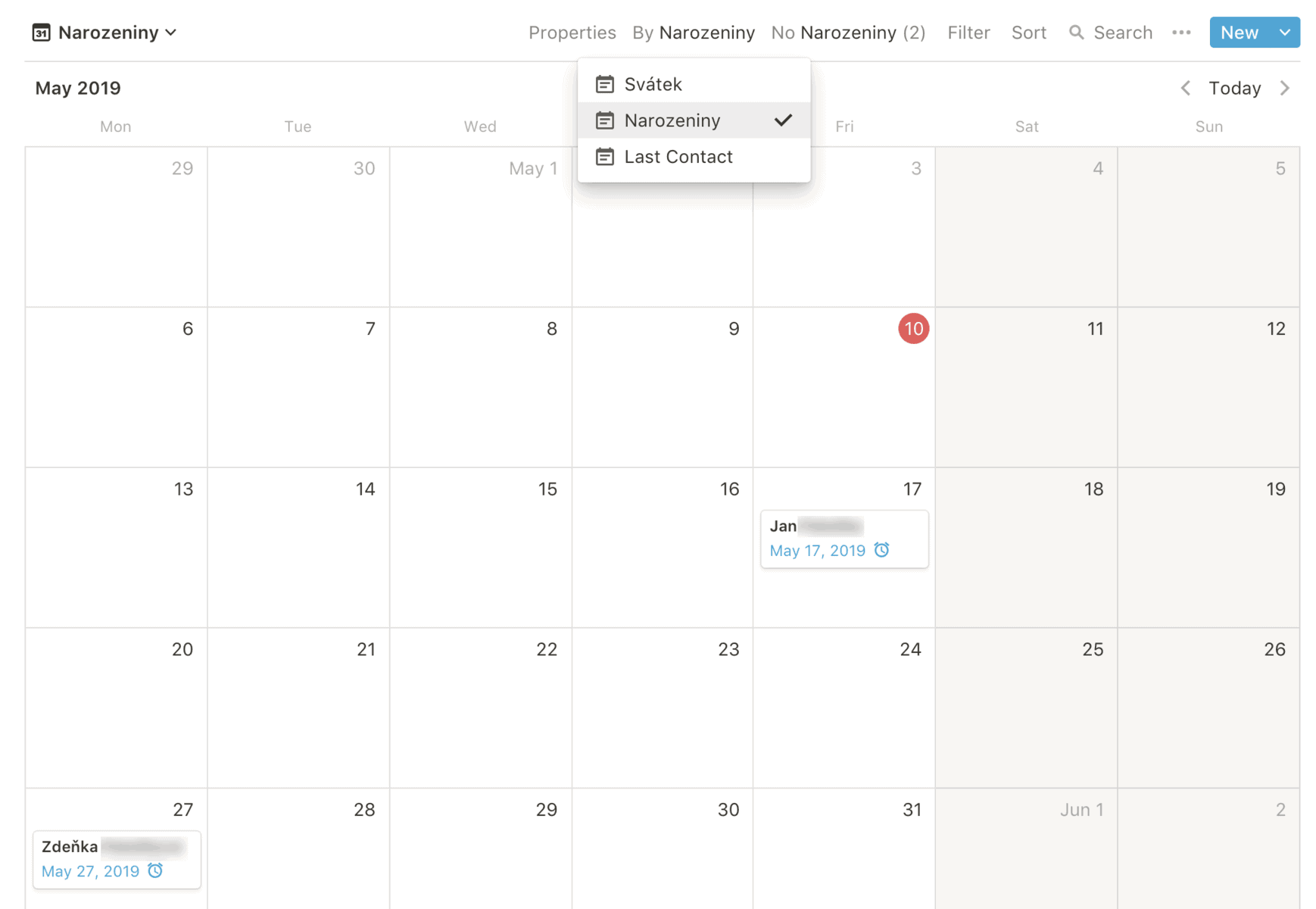
You can learn how to create a calendar view of a database in the final section of this article.
A Personal Library of Books I’ve Read or Plan to Read
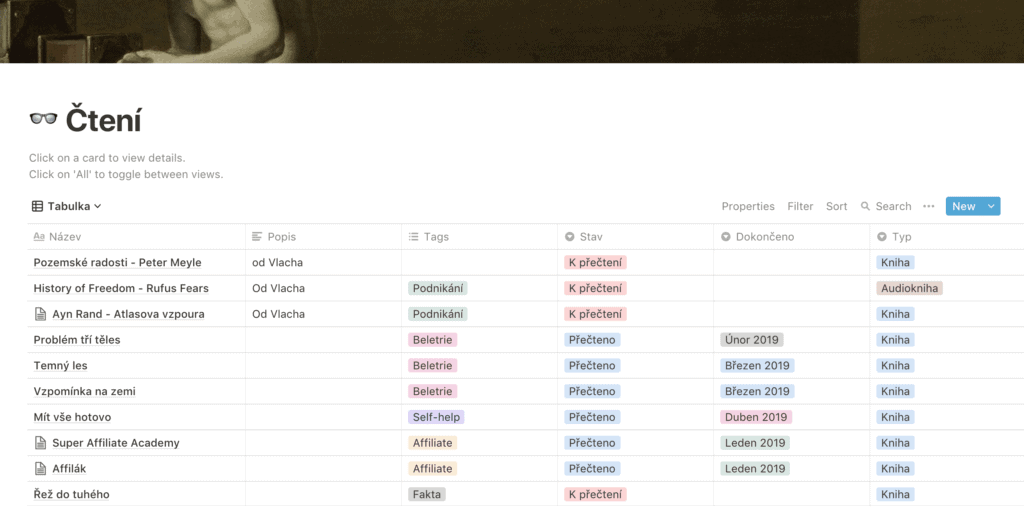
You know that feeling when you finish a book and have no idea which one to pick up next? Even though friends have recommended a dozen titles over the past six months? I know it well — but I haven’t experienced it in a while. That’s because I have a book database.
My book database tracks all the recommended titles I’d like to read, as well as books I’ve finished — complete with notes (when they’re worth it). Whenever I finish a book, I simply glance at the list and grab the next one. I know for certain it’ll be something I’m interested in.
I also track the genre and the month I read each book. That way, I can do a year-end review and adjust my reading habits if needed.
Tracking Physical Activities — From Yoga to Trekking
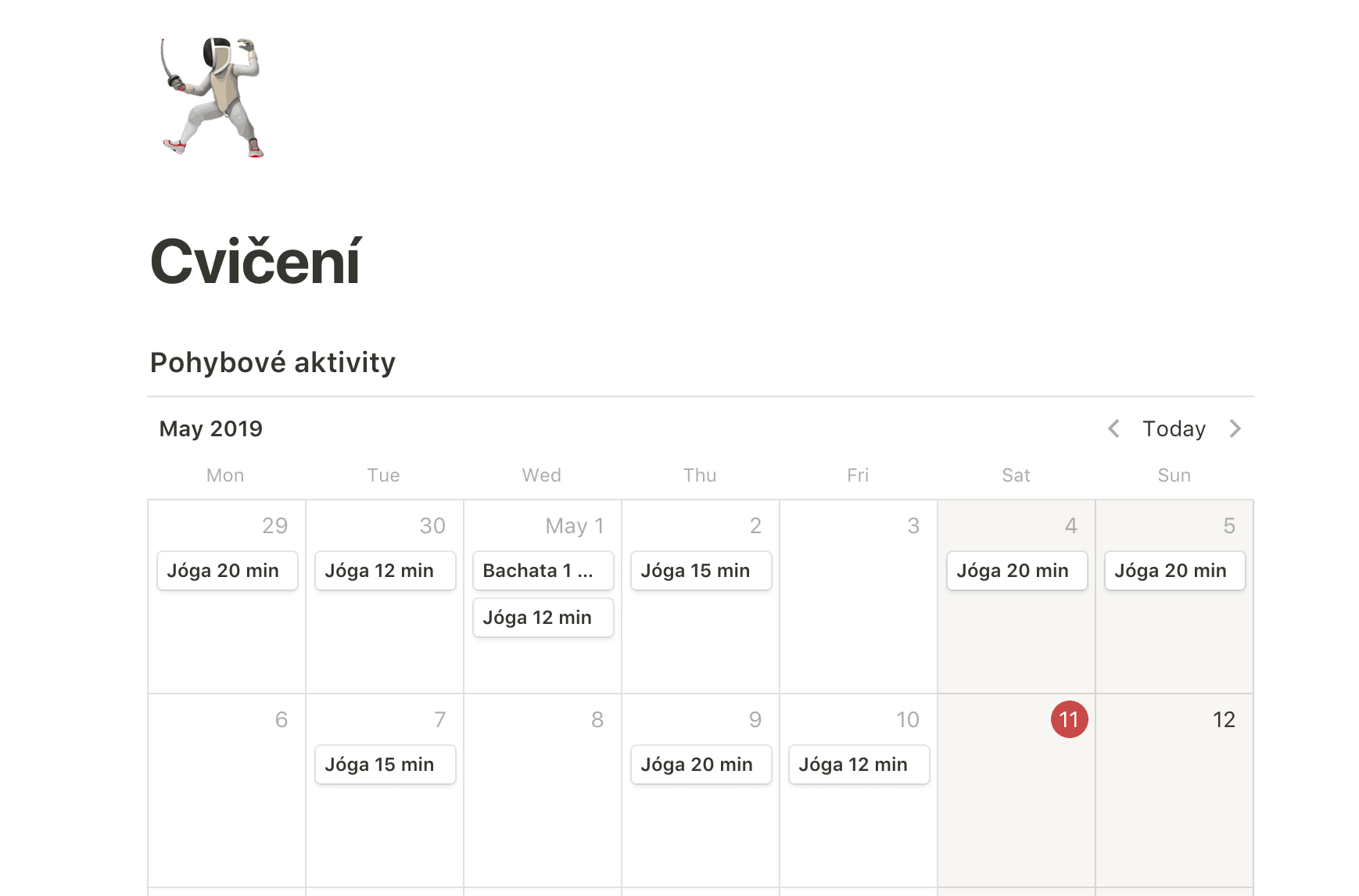
I don’t go to the gym — I work out at home. My willpower isn’t always great, so I often exercise sporadically or skip it altogether. But the moment I start logging my progress (or an app tracks it for me), I exercise with almost miraculous regularity.
I have a rule: I must complete at least 3 physical activities per week. To keep myself accountable, I created an Exercise calendar in Notion where I log every session. No elaborate details — I just create an entry for the specific date and name it in the format “Activity – time spent.”
Managing Complex Work Projects in Notion
In the third column of my dashboard, you’ll find links to work and personal projects that need their own dedicated management. These are mainly our blogs and clients. Let me show you examples of both: the Loudavým krokem blog and an unnamed client.
How We Manage the Loudavým krokem Blog
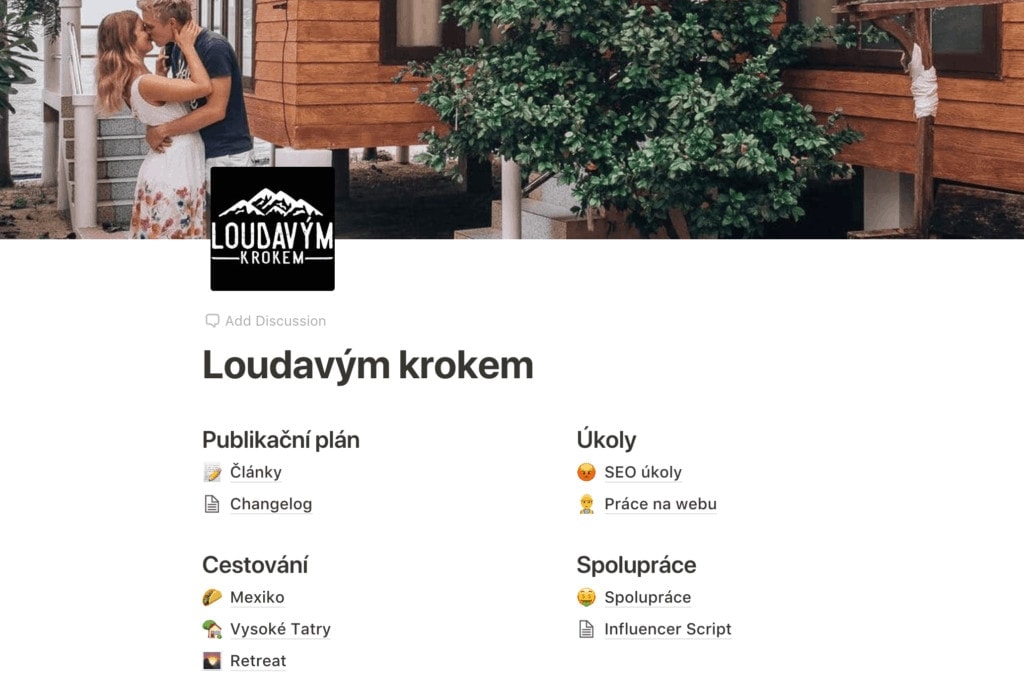
We treat our own online projects with the same professionalism we bring to our clients. Planning, regular task reviews, and staying on top of things have proven to be the most effective way to stay ahead of the competition. That’s why we have a dashboard like this for each blog:
We Follow a Content Calendar
Although my better half often ignores the plan, I diligently log all article ideas and assign who should write them. When there’s a free moment, I just browse the Articles list and pick one to work on. I add it to my project list, define the first step, and get cracking.
The Articles list also includes published pieces. Since we frequently optimise or update individual articles, I log any changes. This lets me later track whether a particular change helped or not.
SEO, Changelog, and Website Maintenance
Our blogs run on WordPress, so each one needs at least a brief weekly check-in to update plugins and fix SEO issues that accumulate during publishing and other site work.
I also keep a Changelog where I record all code and structural changes to the website that could affect search engine rankings or site performance. This way, I can always go back in time and pinpoint which change caused a problem.
Managing Client Projects
My wife and I run a boutique agency called LK Media, and we work with a range of clients — each requiring something slightly different. So I designed a universal structure that we apply to every new client. Whether the brief involves pure copywriting, developing a communications plan, or fully managing all social media channels including paid advertising, the workflow always looks something like this:
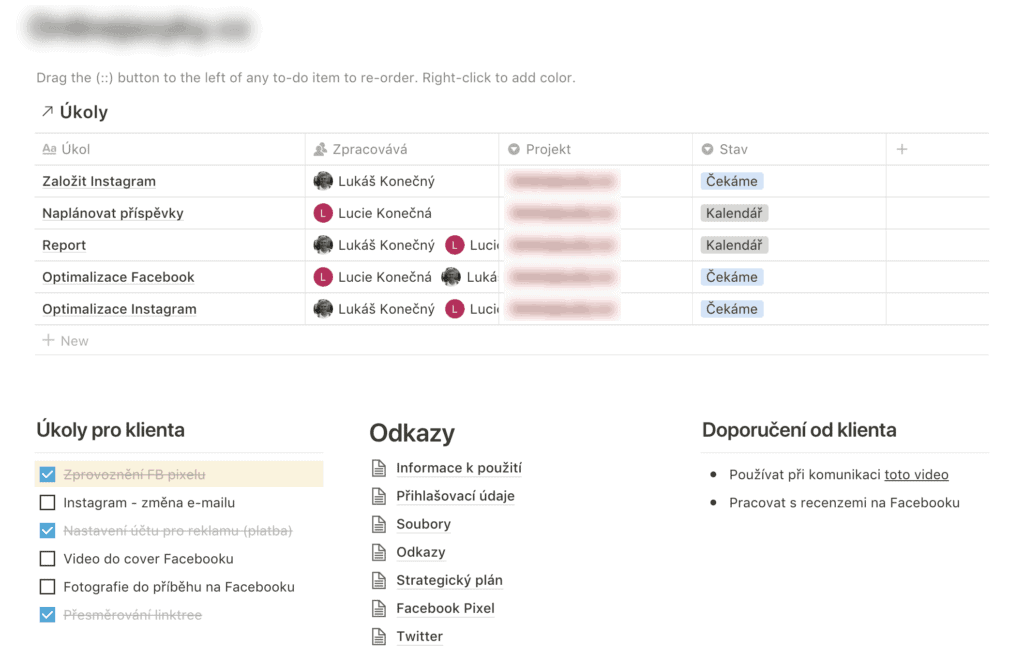
It’s straightforward. We log our tasks in a calendar, client tasks in a to-do box, and useful information in the Links section, which houses all the relevant resources we might need for our work.
Clients often have their own preferences and a specific vision for the collaboration. I note those details in the Client Recommendations column so they’re always front and centre.
We don’t use Kanban, Gantt charts, or any other complex systems. They’re not necessary for our work, and maintaining them would only eat into our time.
Notion Is a System in Constant Evolution
Whether you think my workflow is brilliant or rubbish, it’s always evolving. It changes mainly as my needs change. And that’s the best thing about Notion. In just a few clicks, I can rearrange or tweak my system so it fits perfectly again.
Download My Workflow for Free
My workflow is constantly evolving and has its quirks. But if you genuinely like it, you’re welcome to copy my entire Notion dashboard.
What Notion Can Do
How about we start from the beginning? Let’s take a look at the key features that make Notion such an effective and versatile tool.
Creative Writing Without Limits
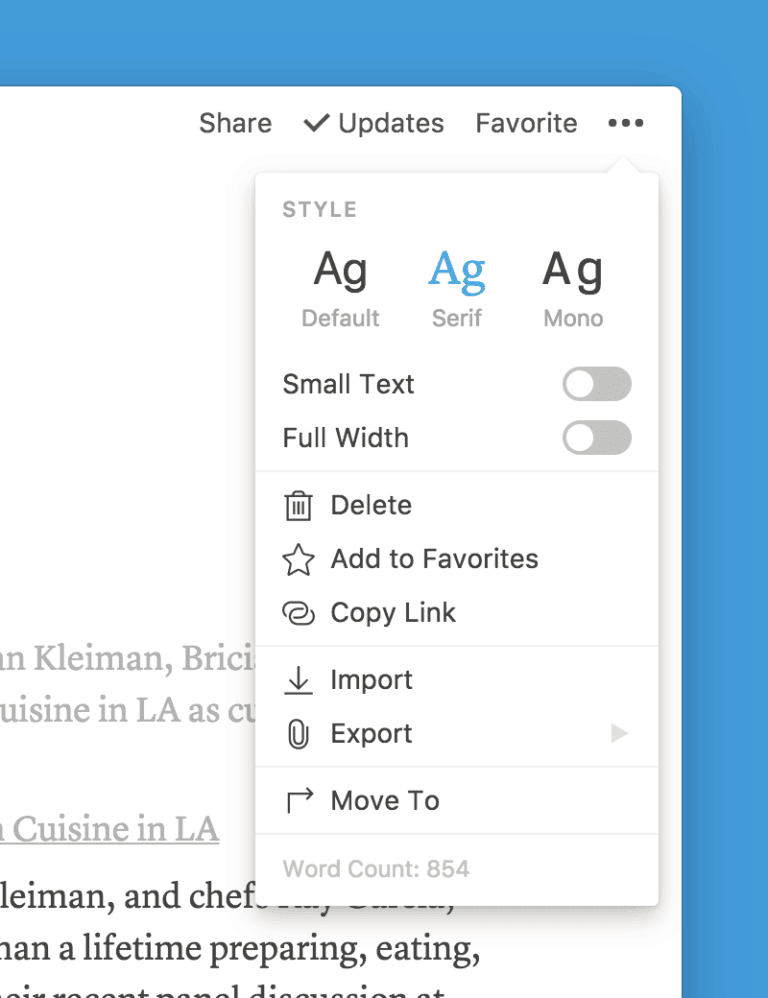
Notion pages fully support Markdown. This means you can write and create everything from recipes to full blog articles directly in Notion.
You can insert links into your text, arrange objects into columns, embed tables, lists, bullet points, and more. Everything you’re used to from other tools — and then some. Notion also has blocks for writing source code, embedding PDF files, and you can even insert an external Google Sheets spreadsheet right into a page.
Organisation and Editing Have Never Been Easier
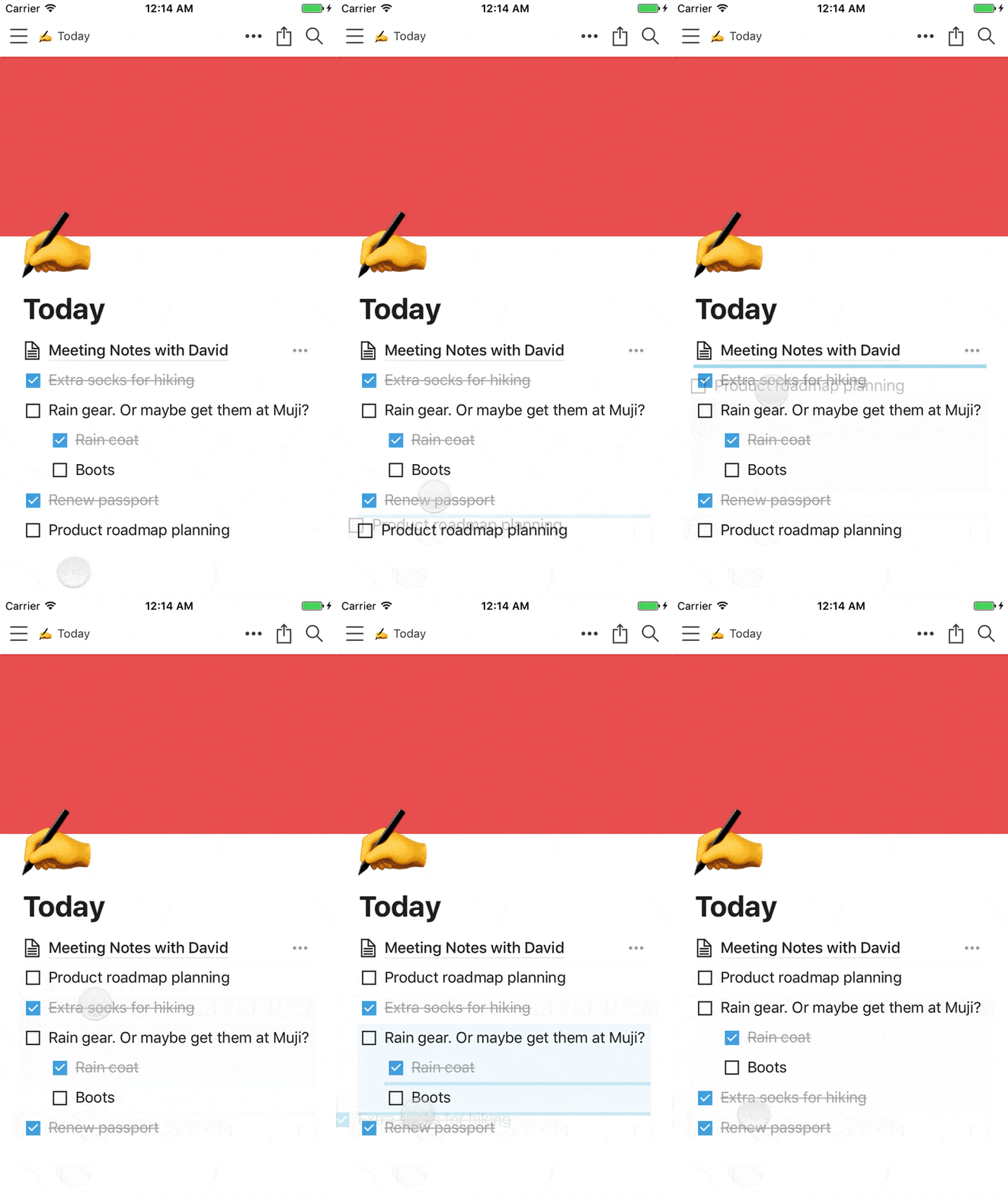
The block system makes it incredibly easy to rearrange, edit, duplicate, and move anything at any time.
Whether you need to move a paragraph, an image, or any number of other blocks, simply select them with your mouse and drag them into place — or use the good old CTRL+C and CTRL+V shortcuts.
Being able to move content around this effortlessly is a massive relief. No more dealing with Word’s formatting and page structure falling apart every time you copy and paste.
Organisation Through Pages and Subpages
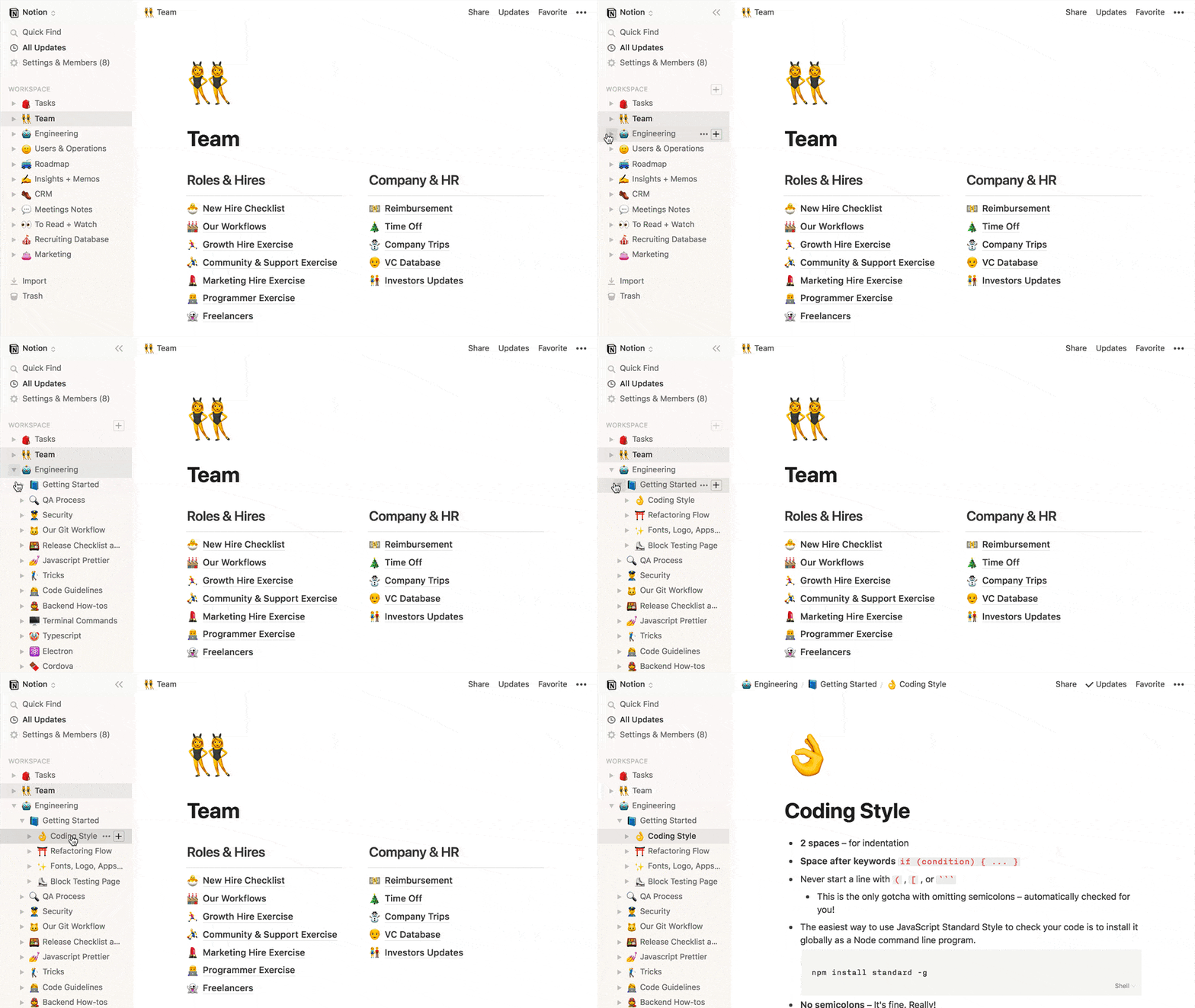
As you’ve already seen in my workflow, Notion works on a system of pages and subpages. You can have as many as you like. A single page can even contain hundreds of nested subpages!
I use nested pages all the time, and alongside blocks, they’re what makes Notion a truly unique app.
The Block as a Universal Tool
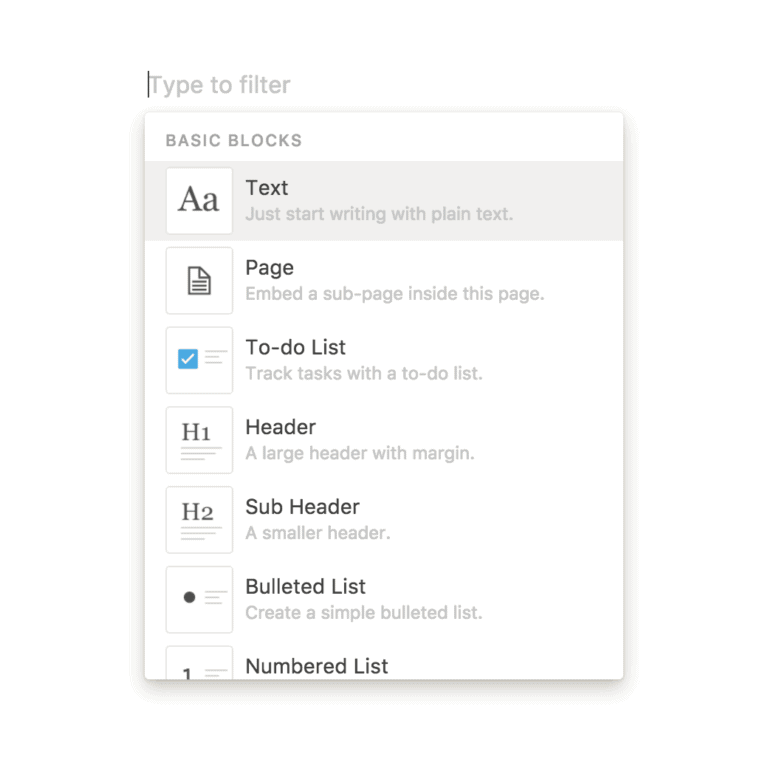
Every page is made up of blocks that you can freely create, edit, and modify. A block can be practically anything:
- Text
- Page
- To-do list
- Heading (H1, H2, H3)
- Bulleted list
- Numbered list
- Code snippet
- Database (table, calendar, Kanban, …)
Blocks also let you import all kinds of media. You can embed web articles, YouTube videos, PDF files, documents, and anything else you can think of into your Notion workspace in various ways.
Task Management and Project Planning
The centrepiece block type in Notion is the database, which offers multiple display options. Used to Trello? Then you’ll love the Kanban view:
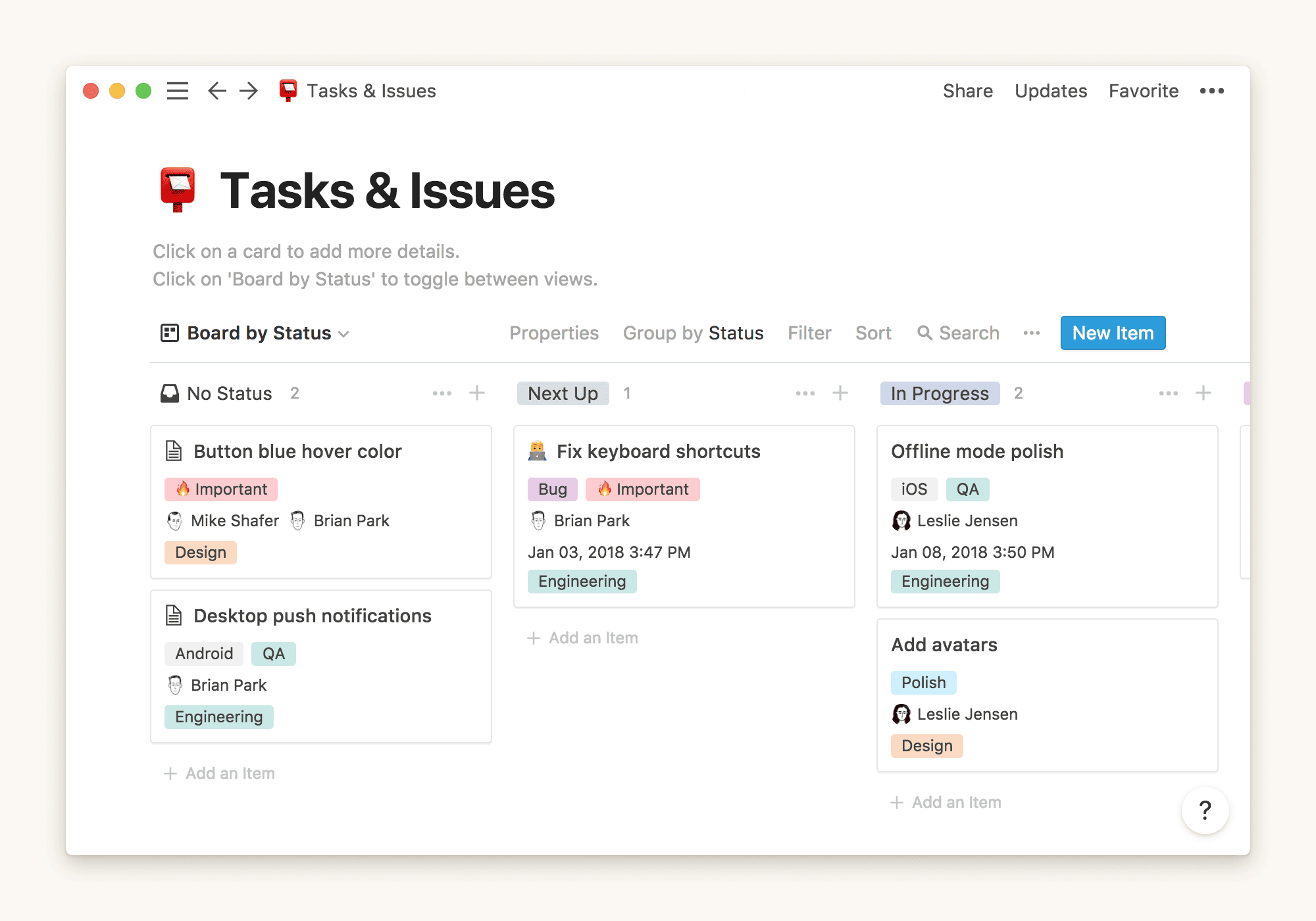
Prefer a calendar or a classic database overview instead? Notion offers those views too.
Thinking about rolling out Notion across a large team? A database can grow quite large and become unwieldy. But Notion lets you create views with filtered data. Each team member can set up their own database view that shows only their tasks.
Export to PDF and Markdown
You can export anything from Notion as a PDF or Markdown file. This makes it easy to back up finished work or send deliverables to clients (if a shared link isn’t enough for them).
Team Collaboration and Sharing
Notion lets you create Workspaces — dedicated spaces where your pages live. You can have a separate workspace for your personal life and another for your business. Any page can be shared with anyone, much like Google Docs. You can even enable Google indexing.
Thanks for Reading!
If you’ve taken a liking to Notion, please consider signing up through my referral link. You’ll get $10 in credits for later use, and I’ll receive a small reward from Notion too. It costs you nothing, and it gives me one more reason to keep writing about Notion. 🙂
Bonus Tip: How to Create a Database in Notion and Reference It Elsewhere
In the section about processing incoming items, I mentioned that tasks from my Tasks database automatically appear on the Today page if I’ve scheduled them for the current day.
Let’s see how it’s done. In your Workspace, click the “+” button (Add a page) and select the Database-Table template.
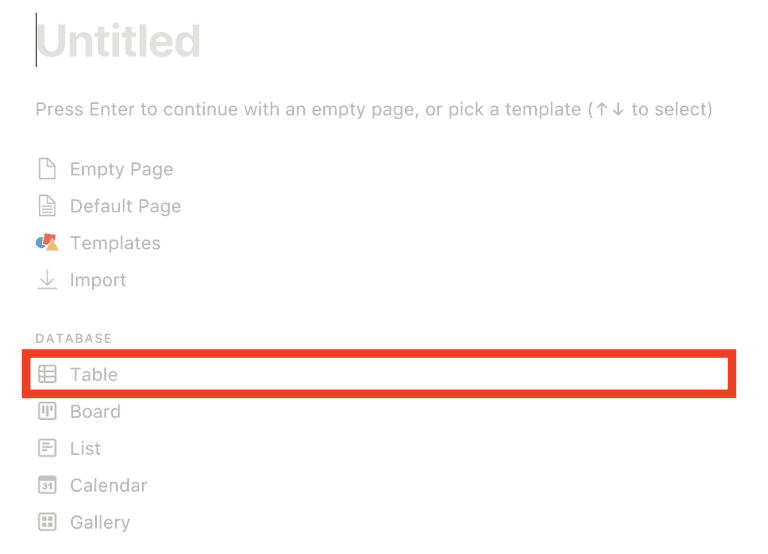
Next, choose the columns you want to use. Don’t forget to include a Date column — it’s essential for this setup. Fill in one row and enter today’s date in the Date column.
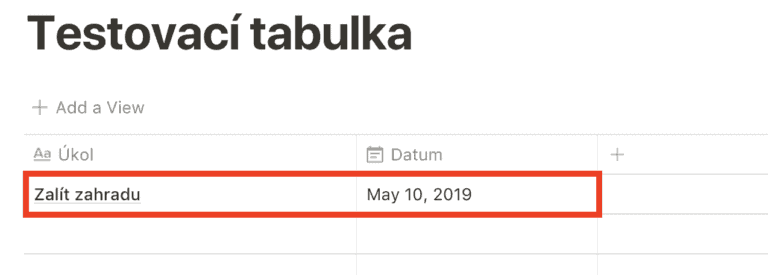
Then create another page and name it “Today.” Instead of using a template, press Enter to start creating a new block. Here, select Create Linked Database and choose your test database.
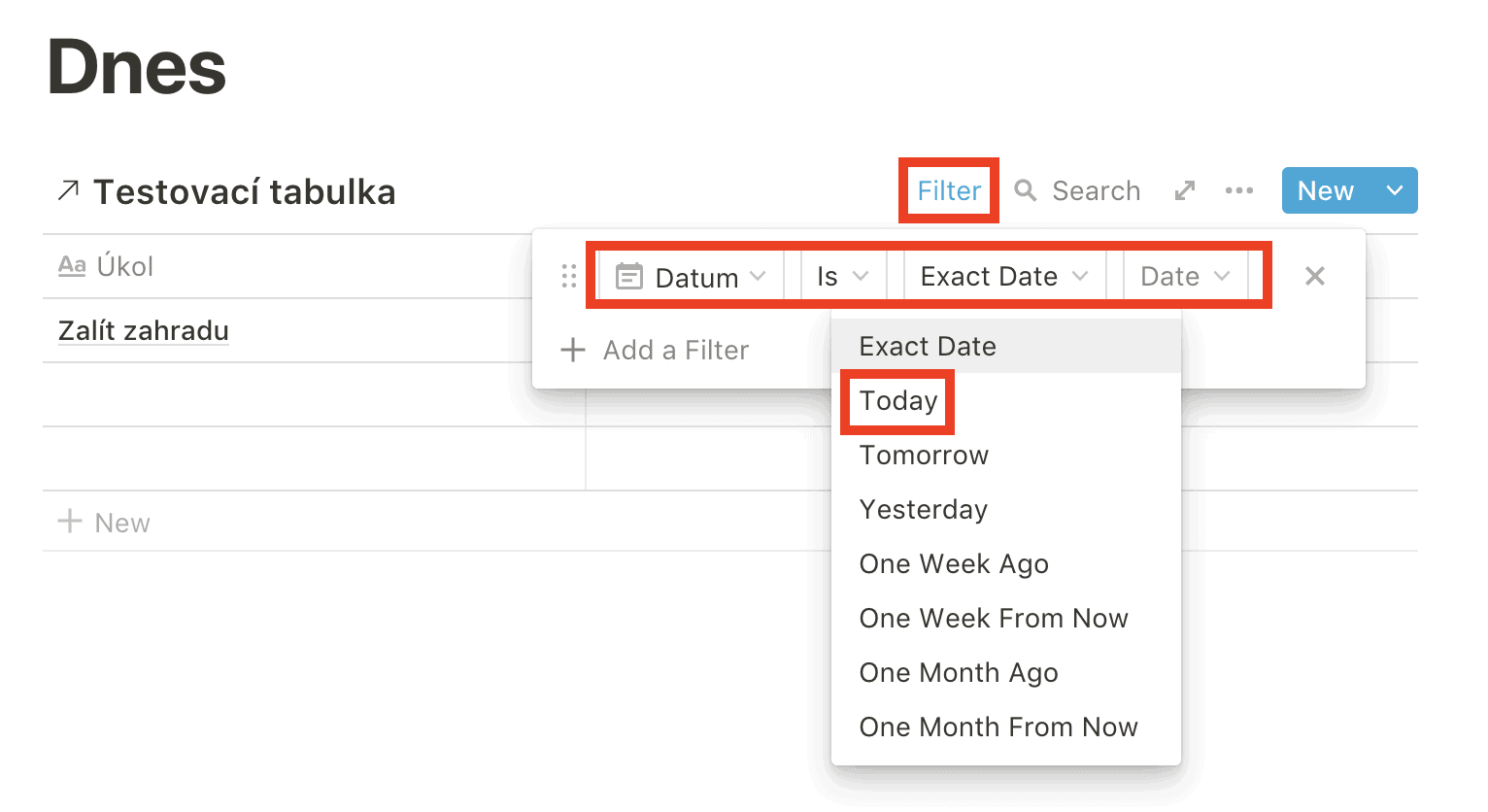
All that’s left is to set a filter so only tasks with today’s date are displayed — and you’re done.
Tips and Tricks for Your Vacation
Don’t Overpay for Flights
Search for flights on Kayak. It’s our favorite search engine because it scans the websites of all airlines and always finds the cheapest connection.
Book Your Accommodation Smartly
The best experiences we’ve had when looking for accommodation (from Alaska to Morocco) are with Booking.com, where hotels, apartments, and entire houses are usually the cheapest and most widely available.
Don’t Forget Travel Insurance
Good travel insurance will protect you against illness, accidents, theft, or flight cancellations. We’ve had a few hospital visits abroad, so we know how important it is to have proper insurance arranged.
Where we insure ourselves: SafetyWing (simple monthly subscription) and TrueTraveller (for extra-long trips).
Find the Best Experiences
Get Your Guide is a huge online marketplace where you can book guided walks, trips, skip-the-line tickets, tours, and much more. We always find some extra fun there!


