

How do you edit photos quickly, easily, and most importantly, make them look professional? Adobe Lightroom is the most efficient — and I’d dare say the best — program for professional photo editing, and Lightroom presets are the secret weapon that makes it all possible. It’s no wonder photographers and bloggers alike swear by it.
What Are Lightroom Presets and Why Use Them?
Thanks to presets, you can edit a whole batch of photos in just a few seconds — and even if you don’t have the best eye for it, they can still look stunning. And you’ll be surprised: it’s actually pretty straightforward.
In this article, I’ll first show you how to import photos into Lightroom, then give you a quick overview of basic edits, walk you through editing with presets, and finally cover how to create your own custom presets. I’ll also explain how to batch-edit all photos taken under the same conditions and how to easily export them.
Think of this article as an introduction to working with Lightroom — no single article can cover everything the program offers. If you want to learn Lightroom properly, I’d recommend finding a comprehensive online course that walks you through it step by step. I wrote a detailed review of one such course here.
Also, keep in mind that I don’t claim to know everything — this is simply how I do it. 🙂 But if it helps even one person out there, we’ll be happy.
But First — Where to Get Lightroom?
Adobe Lightroom Classic is free on mobile, but I should warn you that its features are quite limited. That’s why most photographers and bloggers use Lightroom CC on desktop. If you don’t have Adobe Lightroom CC yet and would like to get it, check out the Photography Plan for €12.09 per month.
I won’t encourage you to pirate the software — especially if you plan to sell your photos, I strongly recommend owning Lightroom legally.
How to Import Photos into Lightroom
Importing photos into Lightroom is just as easy as in any similar program. From the top menu bar, select File -> Import Photos and Video and choose the folder you want to import from. You can decide whether to copy the originals to your computer or simply add them to the Lightroom catalogue (in that case, the source drive must be connected every time you want to edit them).
Always make sure they’re sorted by capture time — “Sort: Capture time” — because you want all photos taken under the same lighting conditions to appear next to each other.
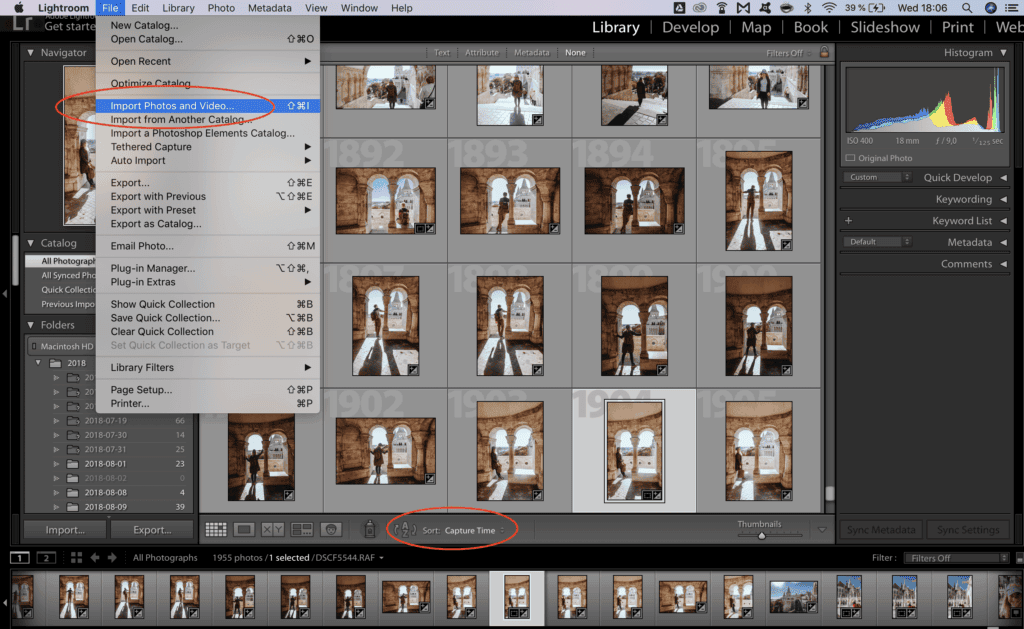
Once your photos are in the Lightroom catalogue, switch from Library to Develop. Without this step, you won’t be able to start editing.
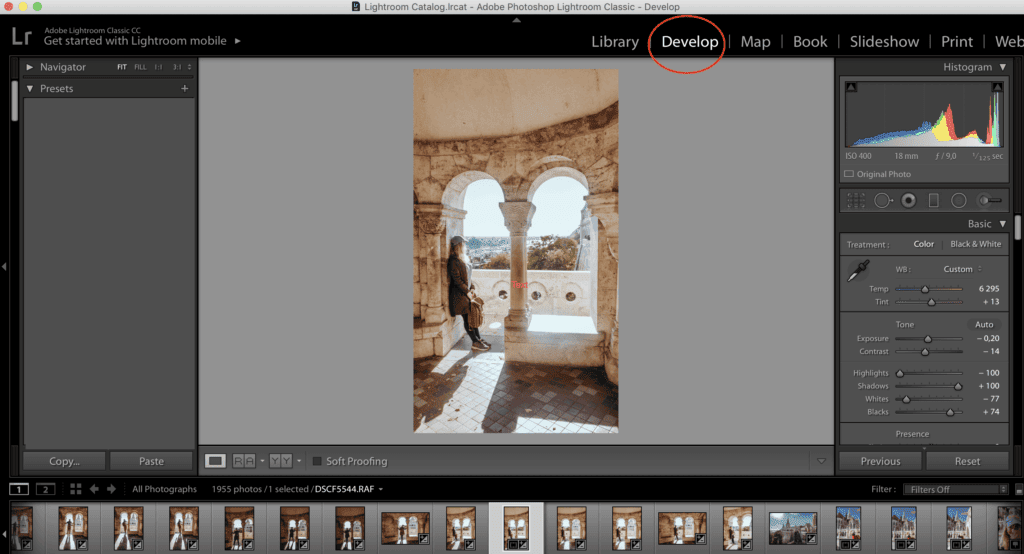
Basic Photo Editing in Lightroom
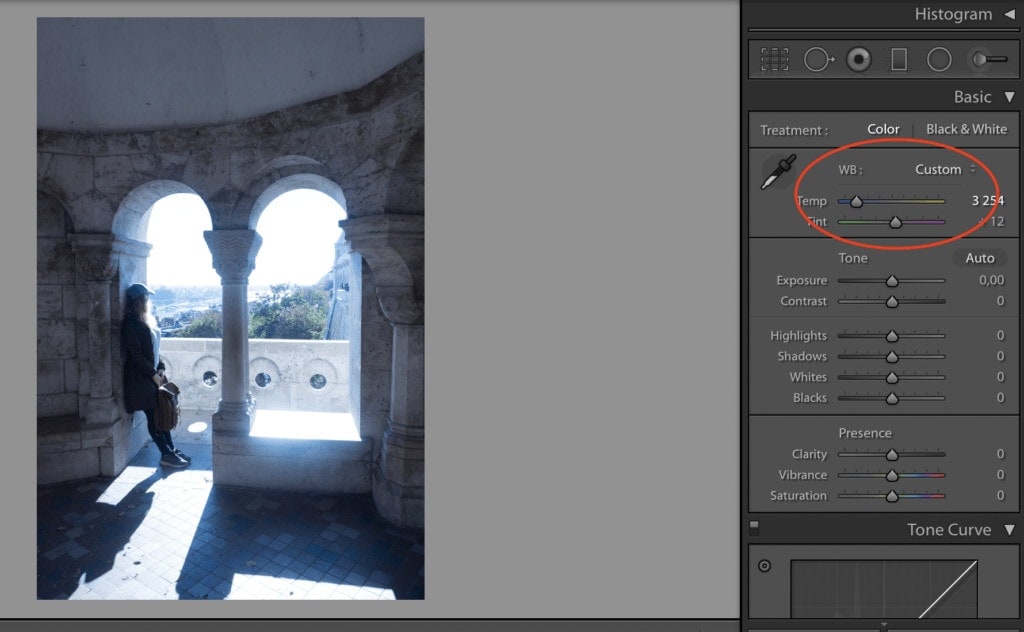
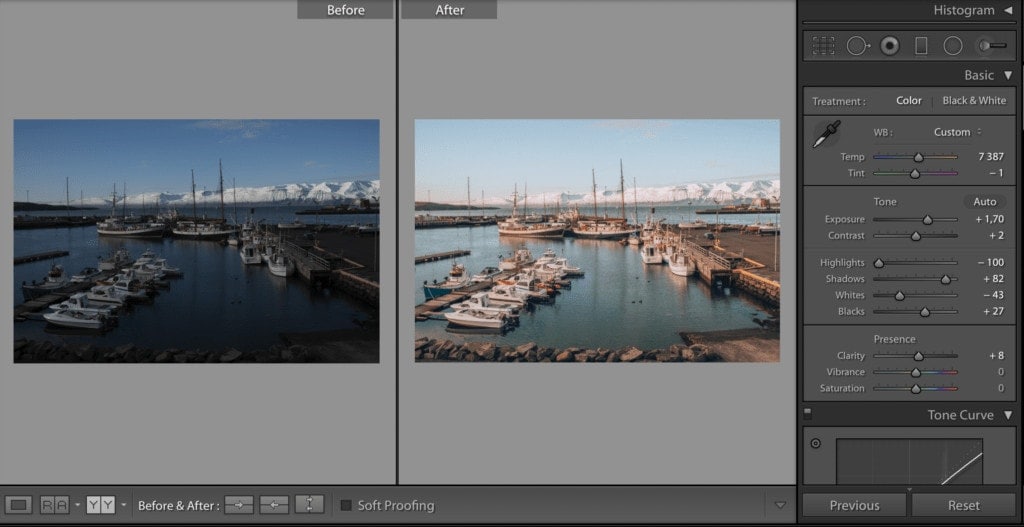
In the side panel, under “Basic,” you’ll find the fundamental adjustments Lightroom offers. You can tweak the temperature and tint of your photo. If your camera spat out photos that are too blue or too yellow (who hasn’t been there!), a subtle — okay, sometimes not-so-subtle — slider adjustment can fix the issue.
Of course, this tool is also great for stylising your photos. If you want to give them a warmer or cooler feel, this is where you can have a play around.
Adjusting Light, Contrast, and Recovering Dark Areas
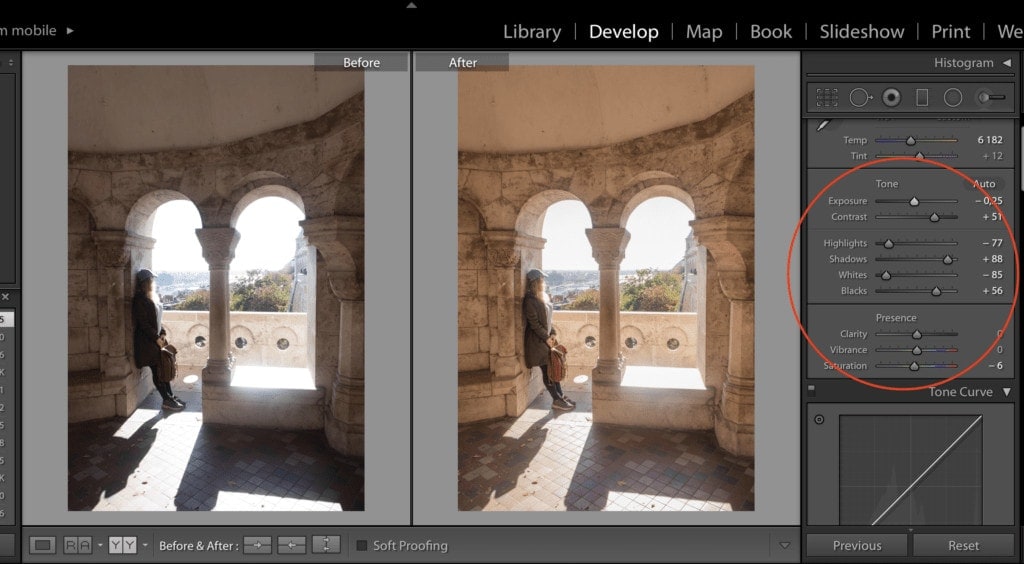
The most common adjustment you’ll need is exposure — either the photo is too bright and needs darkening, or it’s too dark and needs brightening. Under basic adjustments, you’ll also find contrast. You can fine-tune individual tonal ranges too. For instance, if the shadows are too dark, you can lift them slightly, or pull back the brightest spots using highlights.
The Difference Between Saturation and Vibrance
Yes, there is a significant difference between saturation and vibrance, and you shouldn’t confuse the two — at least when it comes to photo editing. When you increase saturation, you’re boosting the intensity of all colours equally. Vibrance, on the other hand, only increases the intensity of muted colours, leaving already-saturated tones largely untouched.
Saturation vs. Vibrance in Practice
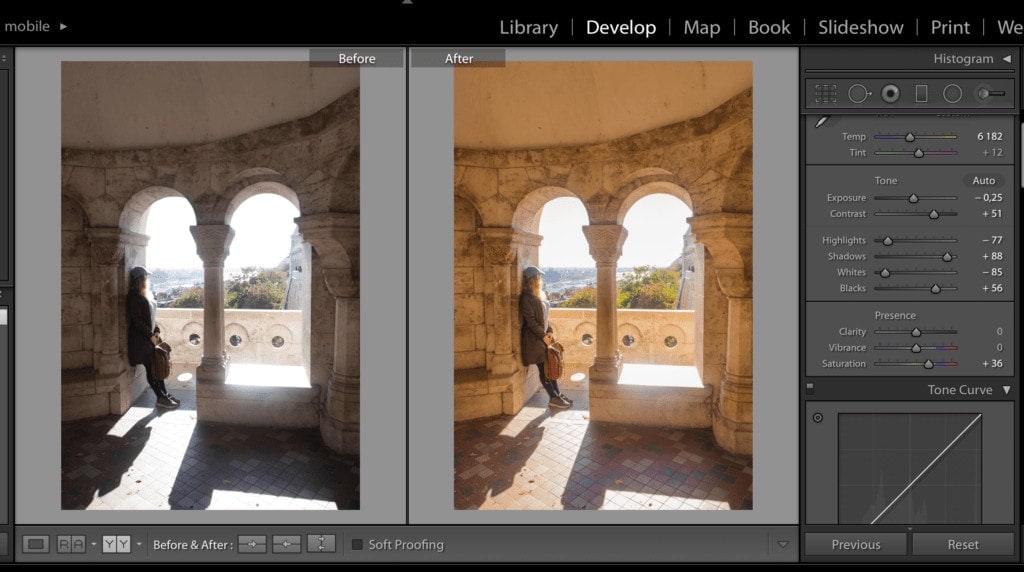
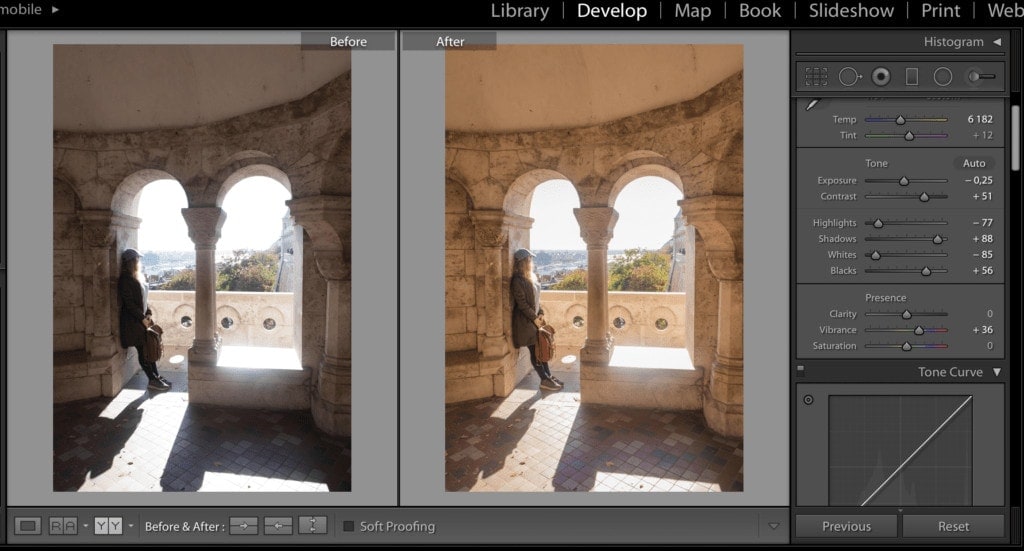
Editing Individual Colours
In Lightroom, you can also adjust individual colours present in your photo. Need to make the sky a deeper blue? No problem. Want to shift the hue of a lake to make it more turquoise? It takes just a few seconds.
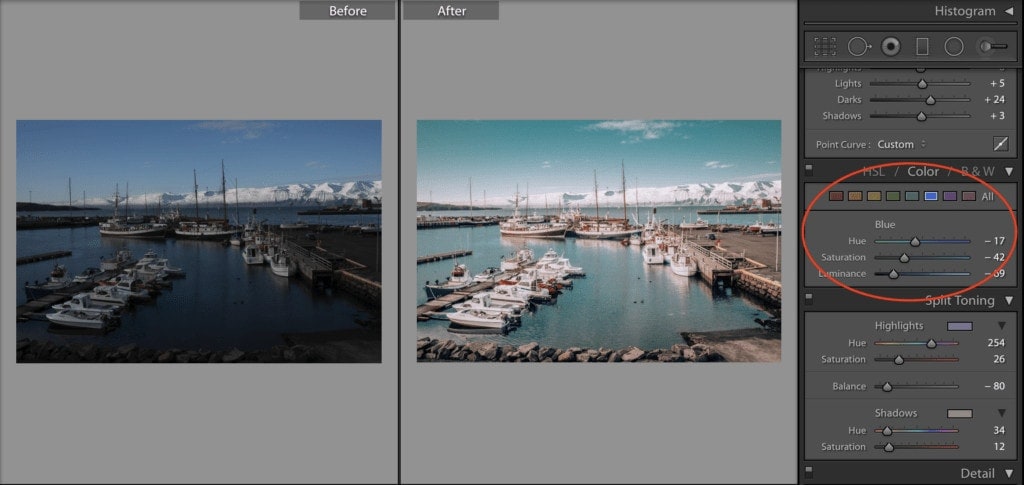
Sharpening Your Photos
If you scroll further down the panel, you’ll find “Detail,” which naturally offers even more adjustment options. I recommend only light sharpening — around 25 or so. 🙂
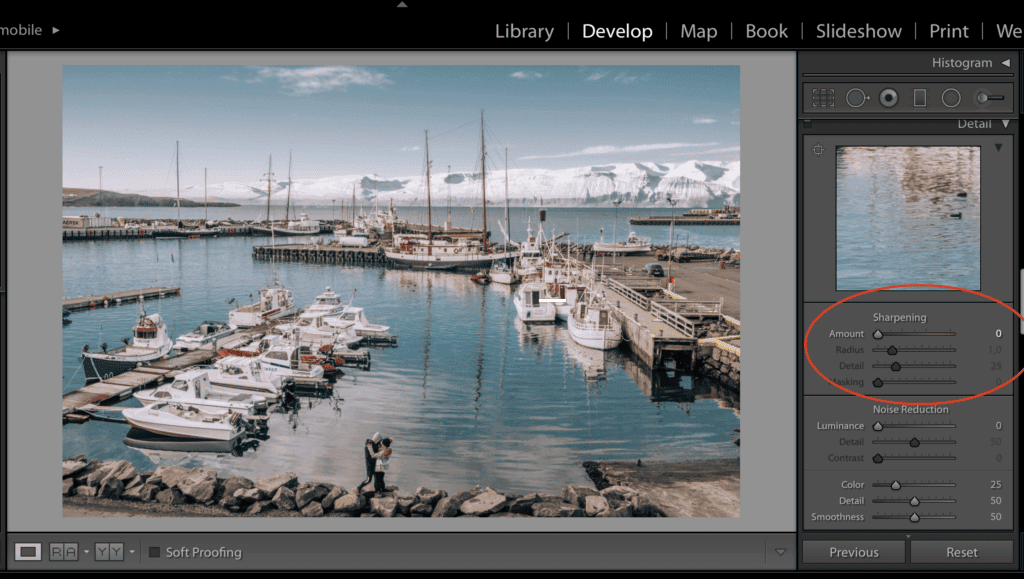
Creating Your Own Lightroom Presets
If you nail an edit and want to apply it to other photos, simply click “Copy” in the bottom-left corner, tick all the settings you want to carry over, and then hit “Paste” — and voilà! If the photo was taken under the same lighting conditions, you won’t need any further tweaks.
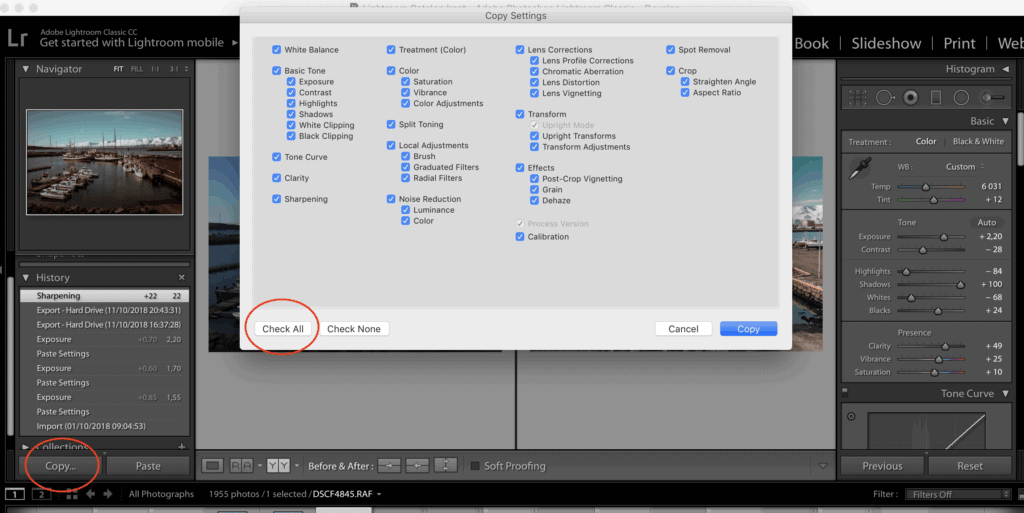
If the conditions differ, you’ll usually need to fine-tune the exposure, highlights, and shadows.
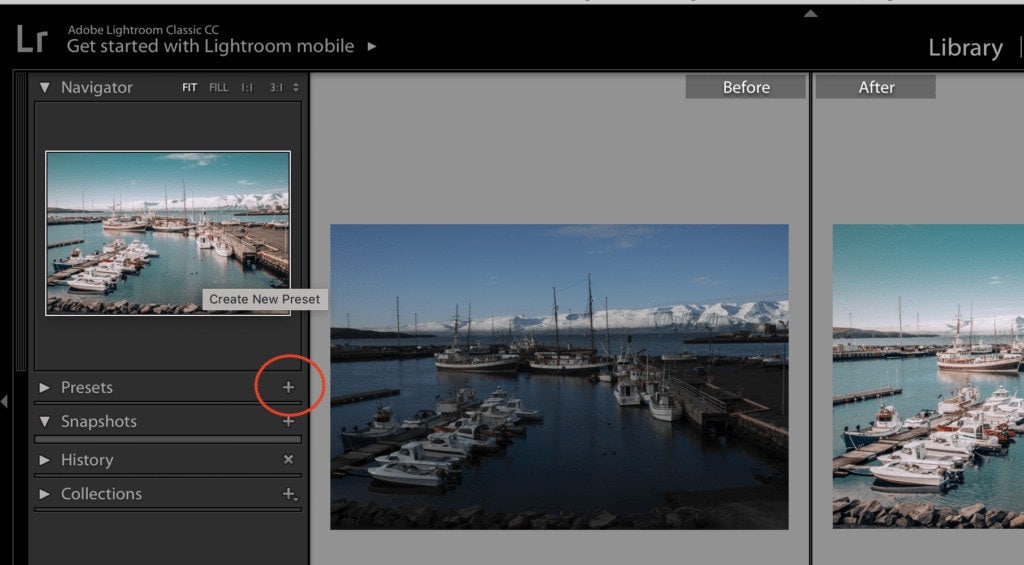
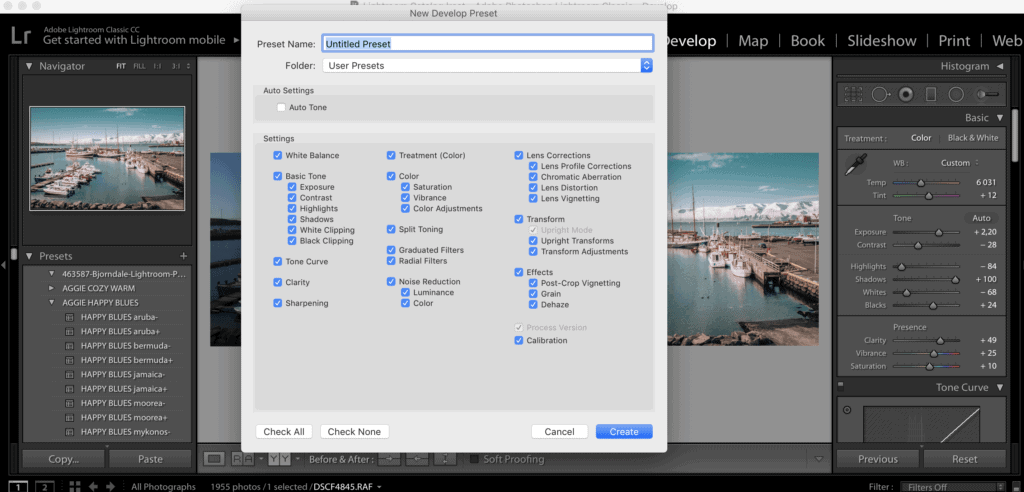
You can save your edits as a “preset” that you can then apply to any photos you import into Lightroom in the future. To create a preset, click the “+” button in the left-hand presets panel.
How to Get Beautiful Photos When You’re Still Learning Lightroom
Don’t despair if you can’t create gorgeous presets like those professional photographers or your favourite bloggers. Most of them went through the exact same struggle. The easiest way to learn how to create your own presets is to download or buy presets from creators you admire for inspiration (yes, everyone does it — they just don’t tell you). I’ve personally bought dozens of presets that I use as inspiration for creating my own. And sometimes I use them exactly as they are.
Check out our recommendations for free Lightroom presets and affordable ones that are worth trying.
If you want Instagram-worthy photos straight away, I’d recommend the Travel In Her Shoes presets. The price is quite steep, but they’re absolutely worth it.
How to Install Presets in Lightroom
If I can do it, anyone can. Once you’ve downloaded your presets, open Lightroom and go to the top menu bar -> Lightroom –> Preferences -> Show Lightroom Presets Folder -> Lightroom -> Develop Presets. Simply move the preset files in as a whole folder.
After applying the MAGIC SUNSET New York preset from Travel In Her Shoes, the photo looks like this:
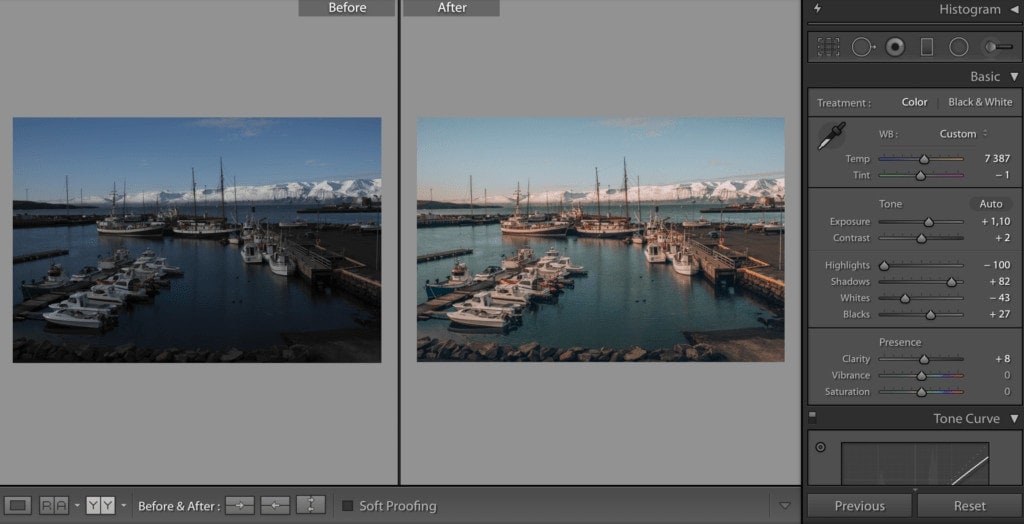
All that’s left is a quick exposure tweak, and the photo is done!
How to Batch Edit Multiple Photos at Once
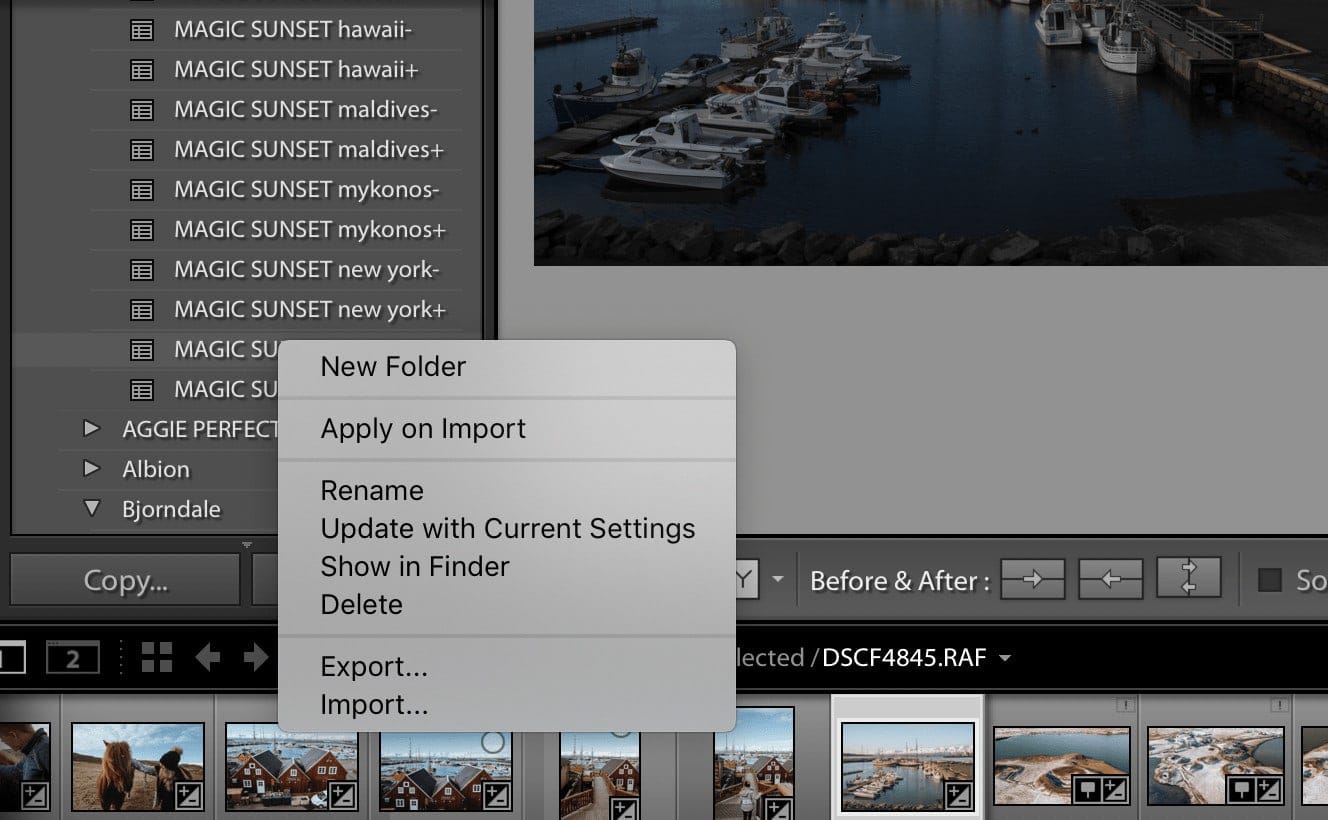
You’ve got a few options here. You can apply a single preset to all photos upon import. Simply right-click on a preset and select “Apply on Import.”
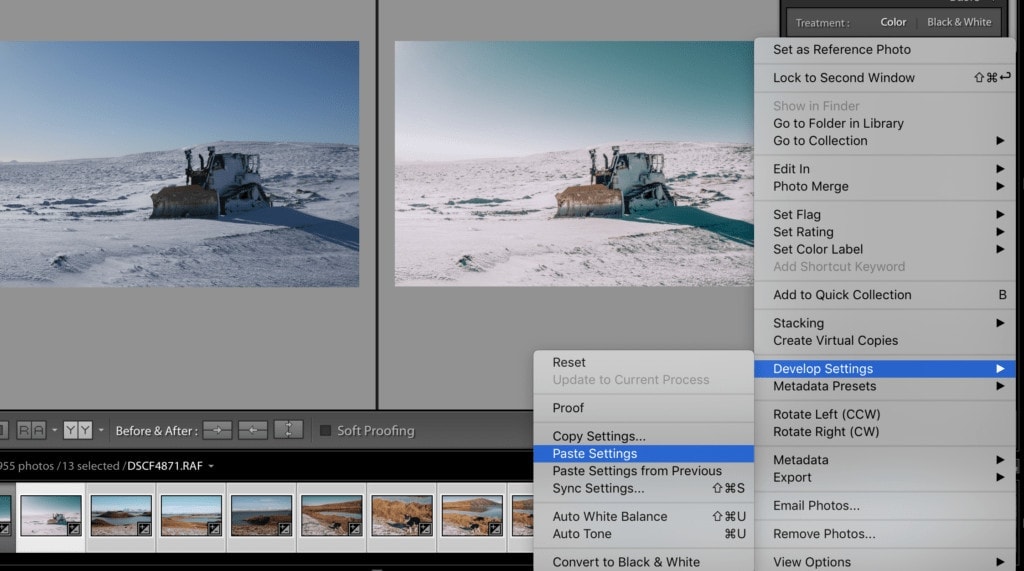
If your photos weren’t all taken under the same lighting conditions, edit one first, copy the settings, then select all the photos you want to apply the same edit to. Right-click -> Develop Settings –> Paste Settings.
How to Export Your Edited Photos
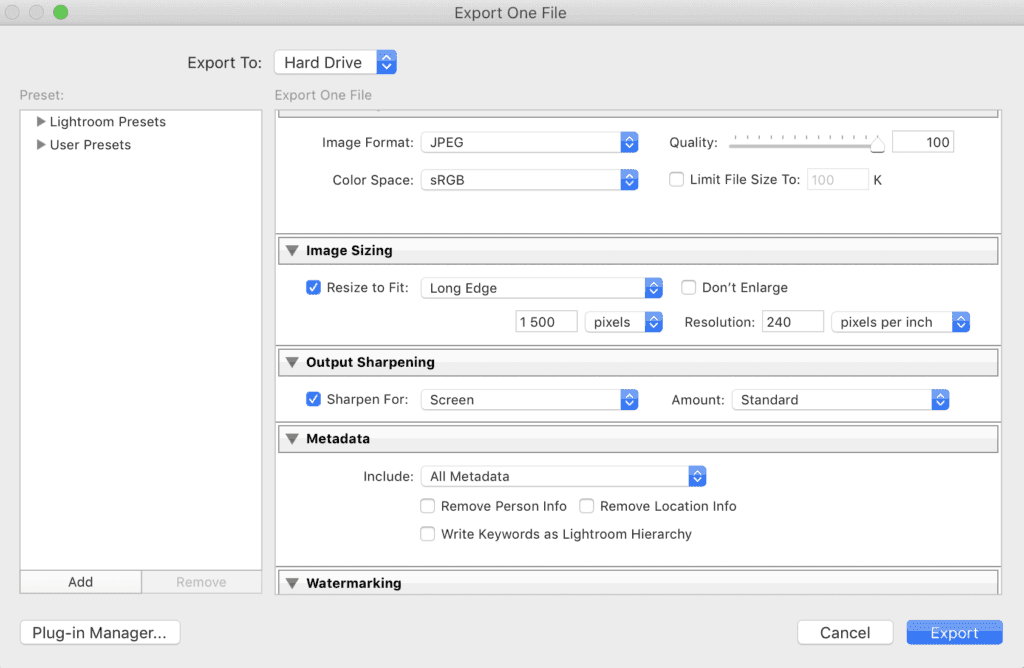
Exporting your photos is dead simple. From the top menu bar, select File -> Export Photos, choose your destination folder, and click Export.
That’s all for today! If you’d like a follow-up, let me know in the comments. Next time, we could tackle how to create a cohesive Instagram feed.
Bonus: Online Photo Editing Course for Lightroom
Want to edit photos like a professional photographer? Master one of the best photo editing tools out there and try an online Adobe Lightroom photo editing course from A to Z.
What the course covers:
- 12 lessons — 2.5 hours of content
- You want to edit photos but don’t know where to start
- You’re drawn to the idea of making a living from photography
- You need to organise your photos on your drive and in Lightroom
- You want to learn new local adjustments
- You’re not sure how to efficiently sort and manage photos
- You want to know the essential Lightroom features and settings
- You’re interested in creating your own presets
- You want to sync photos with your phone
Tips and Tricks for Your Vacation
Don’t Overpay for Flights
Search for flights on Kayak. It’s our favorite search engine because it scans the websites of all airlines and always finds the cheapest connection.
Book Your Accommodation Smartly
The best experiences we’ve had when looking for accommodation (from Alaska to Morocco) are with Booking.com, where hotels, apartments, and entire houses are usually the cheapest and most widely available.
Don’t Forget Travel Insurance
Good travel insurance will protect you against illness, accidents, theft, or flight cancellations. We’ve had a few hospital visits abroad, so we know how important it is to have proper insurance arranged.
Where we insure ourselves: SafetyWing (simple monthly subscription) and TrueTraveller (for extra-long trips).
Find the Best Experiences
Get Your Guide is a huge online marketplace where you can book guided walks, trips, skip-the-line tickets, tours, and much more. We always find some extra fun there!


