

We’d always been used to working on our own — notebooks and email were all we ever needed. But when our company nanoSPACE started growing rapidly, alongside our agency LK MEDIA, the team expanded practically overnight to nearly ten people. Suddenly, project management became an absolute nightmare. That’s when we started looking for a proper project management tool — and eventually found Freelo. This Freelo review covers everything we’ve learned after four years of using it daily.
We spent a while trying out different tools — from Trello to Asana to Basecamp — but ultimately settled on Freelo, a Czech-made platform where we’ve been paying for team plans for four years now.
What Is Freelo
I won’t lie — I’ve always struggled with managing people, and the more of us there are, the worse I get at it. So I appreciate and try out every tool that promises to help 😅. I’ve tested dozens of them, and Lucka (my wife and business partner) is rightfully frustrated by my constant switching. Luckily, Freelo came along at just the right time.
Freelo turned out to be the best online tool for project management in a small team. I haven’t found anything better. Team collaboration is simpler and more transparent thanks to it, and my anxiety about juggling dozens of projects has dropped significantly.
Freelo is a web-based tool you can use from anywhere. It works brilliantly on desktop, and the mobile app does a decent job too.
What Is Freelo Used For?
Freelo is a tool that streamlines and improves project management. It lets you create projects and break them down into tasks and subtasks. Once a specific task is assigned, everyone on the team knows exactly what they need to do on a given project.
Freelo also makes life easier for us managers — we have a complete overview of what’s happening across our companies and what stage each task and project is at.
🚨 With Freelo, nobody forgets deadlines, tasks don’t fall behind (as long as you stay on top of things 😎), and no information gets lost anywhere.
Team members no longer have to dig through emails for information and work briefs. Every assigned task triggers a notification directly within the platform. Alongside the task, they’ll find detailed instructions in the comments about what needs doing and by when. For good measure, every notification is also sent as an email alert. All tasks are just a few clicks away.
But Freelo isn’t just for businesses. It’s also an incredibly useful tool for freelancers.
💡TIP: You can try Freelo right now. The basic plan is completely free, and if your team has up to 3 people managing a maximum of 3 projects, it stays free forever. 😎
Freelo: Pros and Cons
Let’s start with the pros:
- ✅ Freelo is one of the best project management software tools out there.
- ✅ Countless useful features for project management — projects, tasks, subtasks, notifications, detailed overviews, financial reports, time tracking, and much more.
- ✅ A very clean, user-friendly interface that genuinely anyone can learn to use.
- ✅ Plenty of pricing plans to choose from + a completely free basic plan.
- ✅ A well-built tool with a clean, modern design and strong localisation options.
- ✅ Integration options with a wide range of third-party apps and services.
I thought long and hard, but honestly couldn’t come up with any real drawbacks 😅. Some might consider the 3-project limit on the Free plan a downside, but you have to expect that with a plan that costs nothing.
Freelo Features Overview
Freelo packs a serious punch when it comes to features.
Project Management
The core function of Freelo is managing projects. After creating a new project, you can invite team members who’ll be working on it and then assign individual tasks with deadlines.
Projects offer several display options — you can view tasks in a list or in columns.
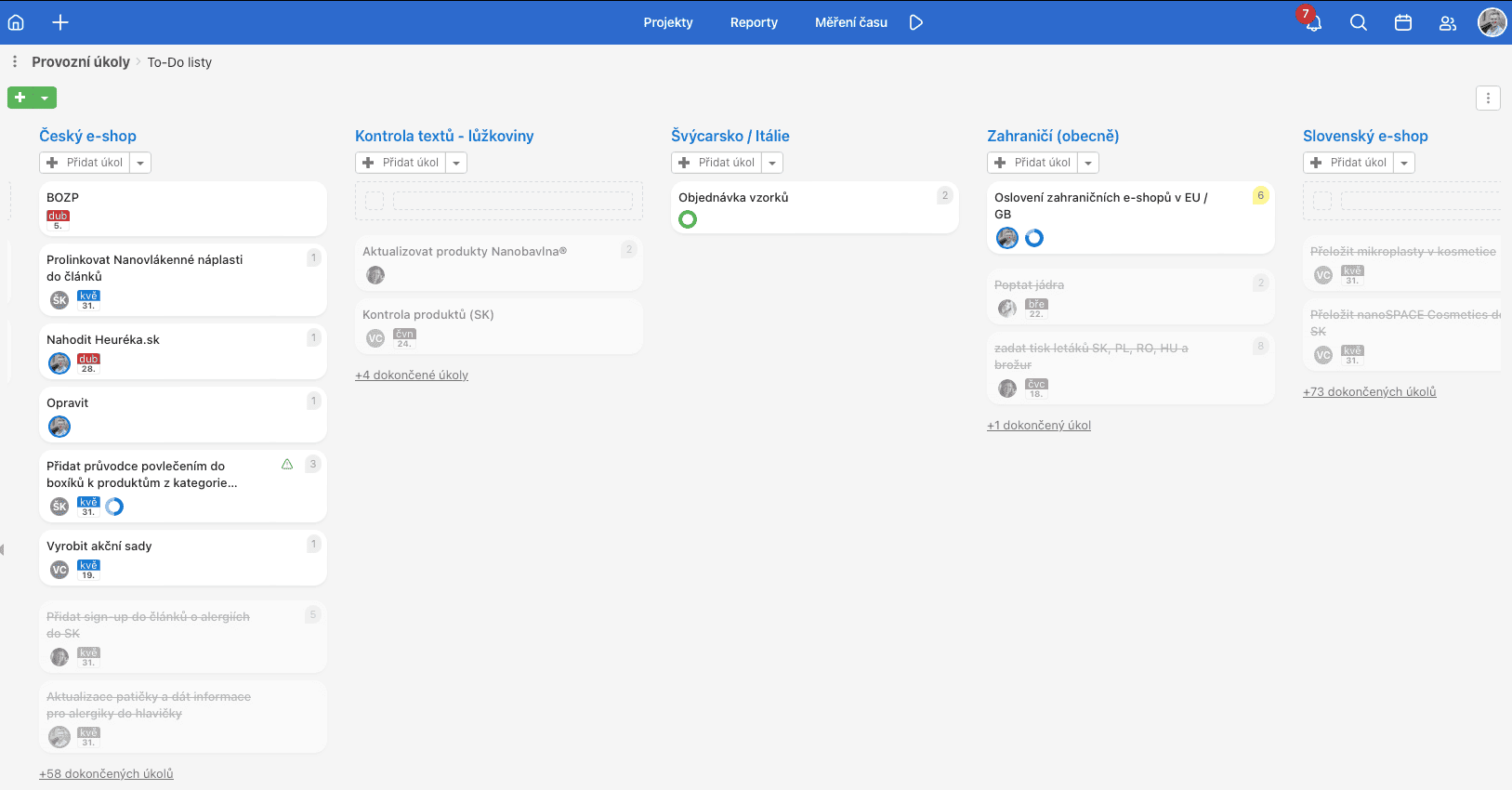
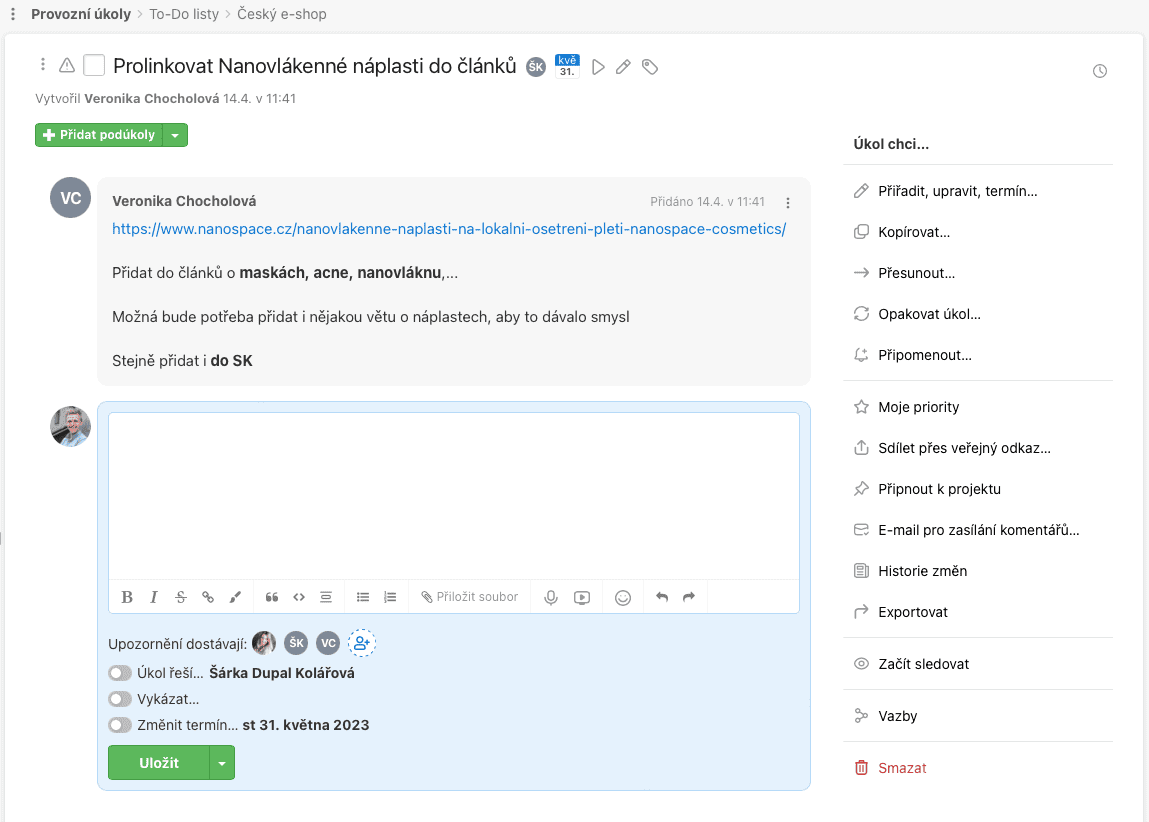
Every team member is notified of a new task assignment via an in-app notification and an email alert. In the comments section of each task, you can provide detailed instructions on how to proceed, and even upload supporting files.
Project management becomes far more efficient with Freelo. Everyone knows what to do, how to do it, and when it’s due. I have complete oversight of everything — for every task, I can see who’s responsible (and therefore who to praise or have a word with).
Notifications
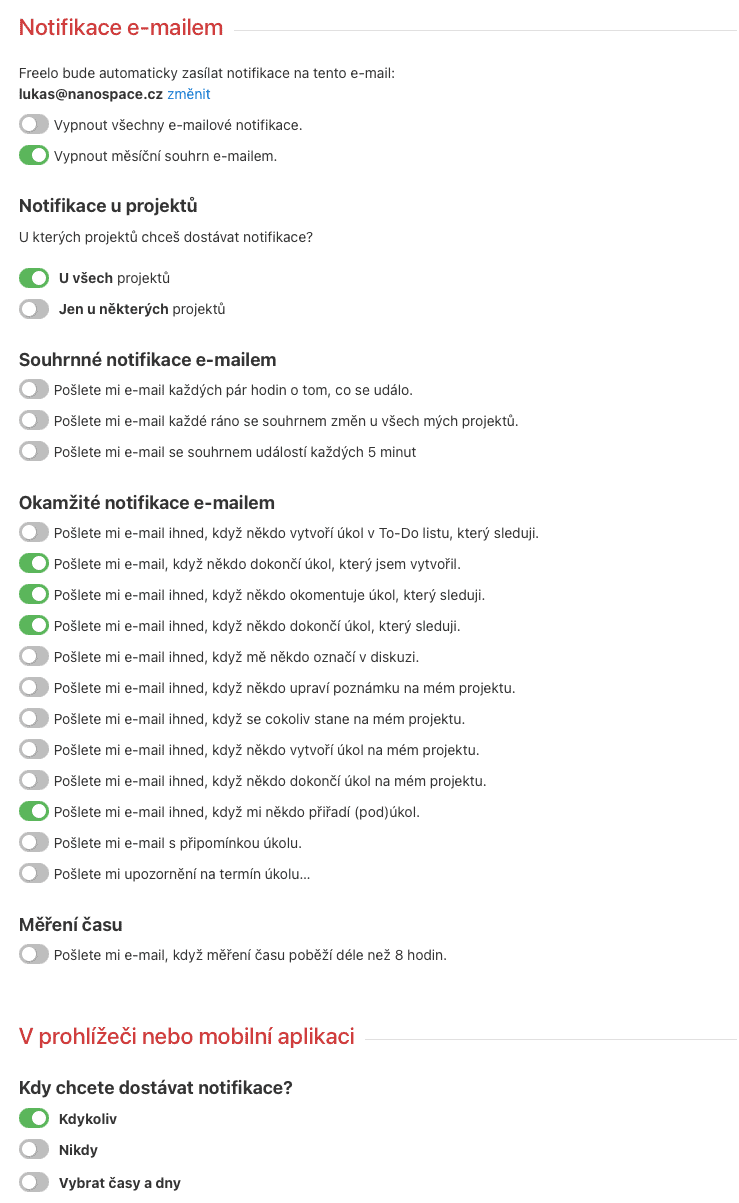
Freelo’s notification system is highly customisable. The initial setup takes a bit of time as you gradually figure out what you want to be notified about immediately and what can wait. You can filter out less important notifications and only be alerted about the things that truly matter.
On top of that, Freelo sends regular activity summaries to everyone involved in a given project. You can opt for hourly or daily digests.
Project File Storage
Each project comes with its own well-organised file storage. All important documents and analyses are right at your fingertips. You don’t have to worry about which project a file belongs to — files never get mixed up between different projects.
The storage also integrates with services like OneDrive and Google Drive, among others.
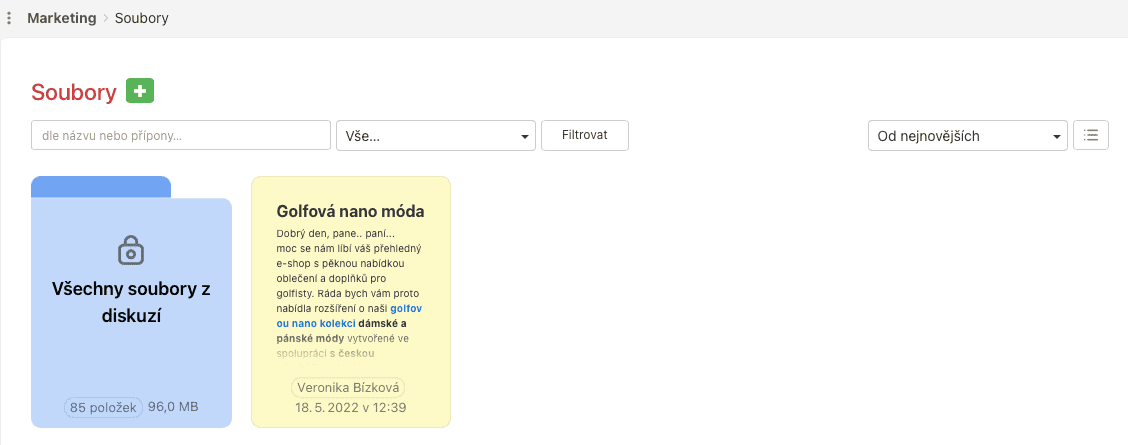
Kanban Columns/Rows
You can display individual tasks within projects exactly how you need them. This is made possible by Kanban columns — To-Do, In Progress, and Done. Getting a clear picture of what’s completed and what still needs doing couldn’t be easier.
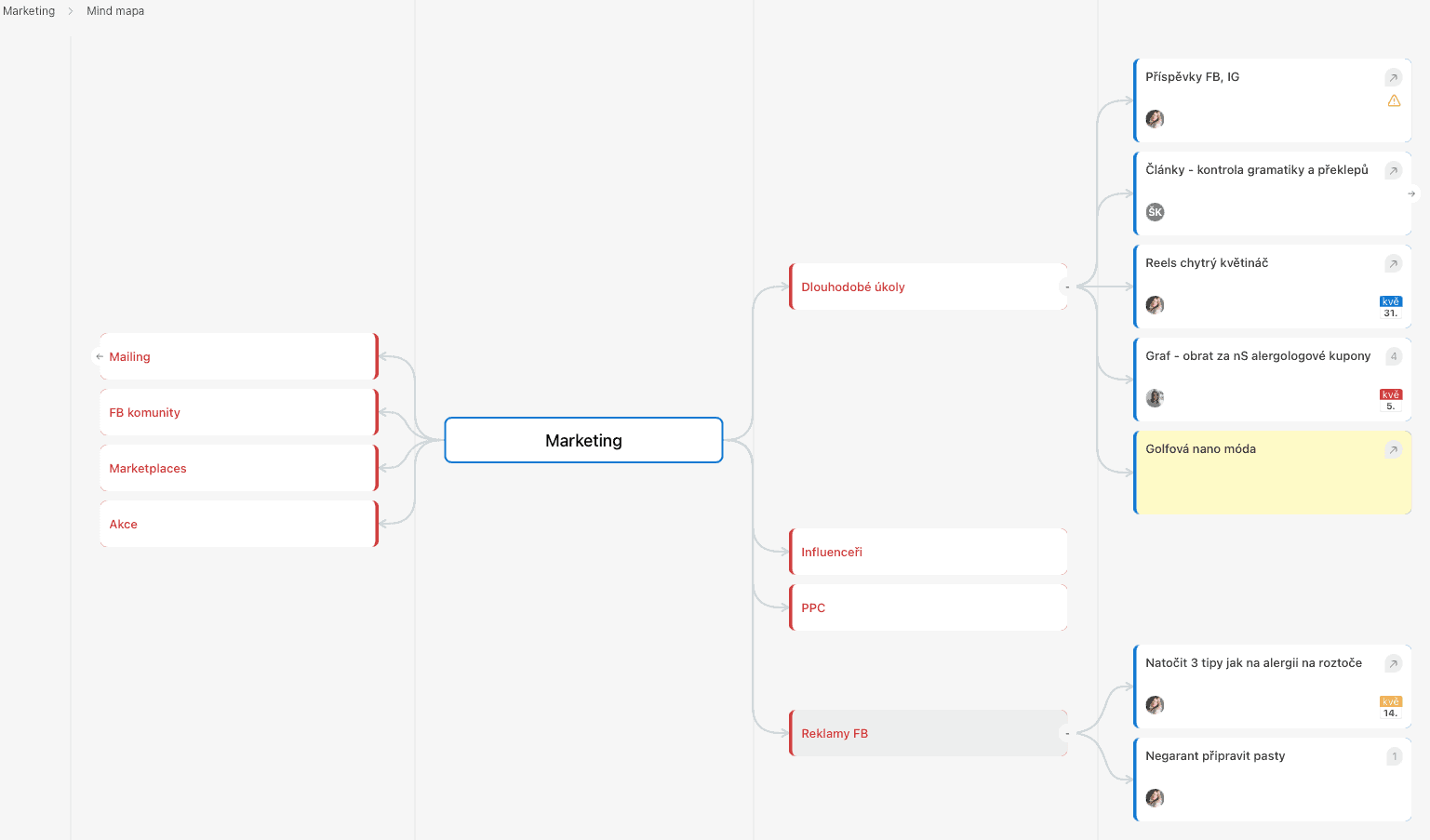
Mind Map – Bird’s-Eye View of Your Project
You can break down any project into a clear hierarchical structure. It displays a tree view from the biggest, most important tasks all the way down to the smallest subtasks. This gives you a perfect overview and ensures you haven’t forgotten any task within the project.
Permission Settings
You can restrict each team member’s access so they only see the tasks they’re actually working on.
Planning Calendar
The planning calendar lets you quickly and easily set deadlines for individual tasks. This calendar is then available to everyone involved in the project. They can easily see — in a visual format — what needs to be done by when, and who’s responsible for what.
Financial Overviews and Reports
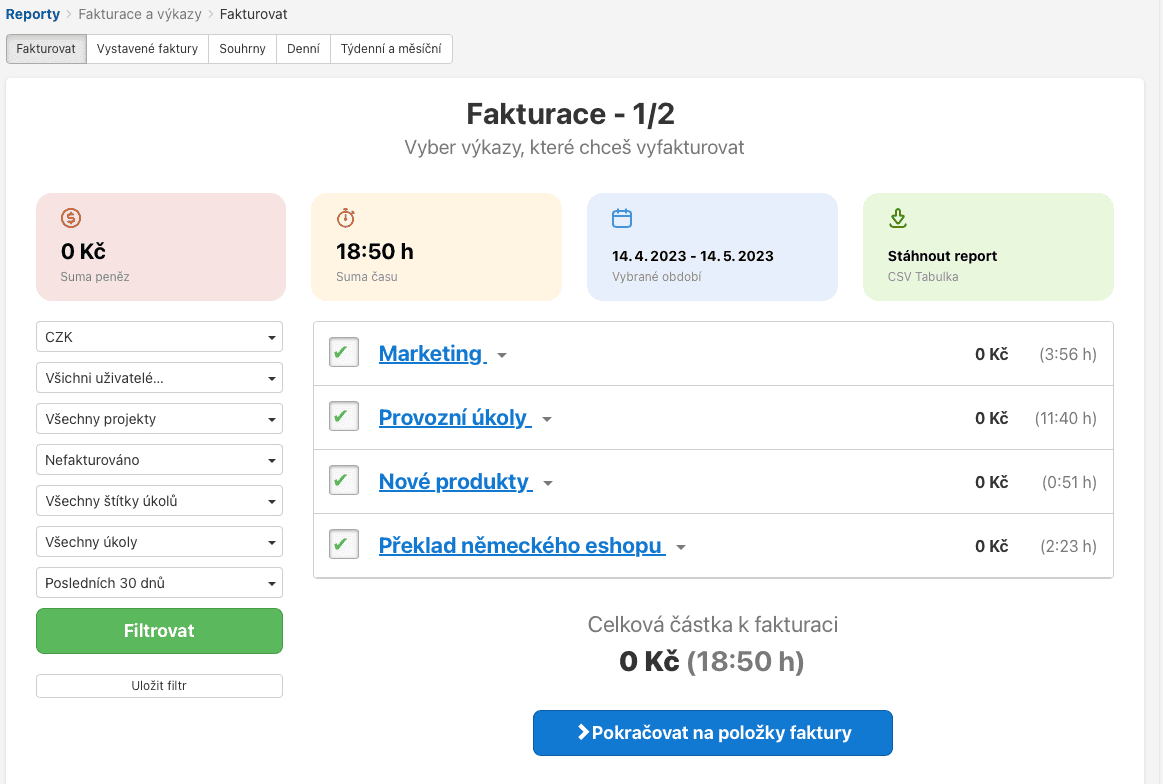
You can also set a budget for each project. From there, you can conveniently view the total spending across all your projects. The financial budget for a given project stays clearly visible at all times. Already-spent funds are deducted from the original total budget. This way, you always know where your project stands financially — how much you’ve spent or earned.
Time Tracking
Make sure your team members switch on the time tracking feature when working on a task. It records the time they spend on each assignment. If you enter their hourly rate into Freelo, you’ll also get an instant overview of how much completing that particular task actually cost you.
Within Freelo, you can also set hourly rates and invoice directly from the platform — for example through integrated invoicing services where Freelo offers seamless connections.
Templates
Freelo templates let you save workflows and guides that make future work even easier. You can then delegate tasks to less experienced colleagues, who simply follow the template step by step. Templates are also great for streamlining the creation of similar recurring projects — like listing products on an e-shop, for example. Beyond the workflow itself, templates can also include time estimates for when each task should be completed.
Team Notes
Another handy feature is team notes. You can discuss things under these notes just like you would under assigned tasks. They’re perfect for recording important company notes, workflows, and guides.
Freelo User Interface
Now that we’ve covered the features, let’s take a look at what the Freelo user interface actually looks like.
Dashboard
After logging in, every user lands on their Dashboard. This is your home page — a complete overview of all tasks across every project. You can filter the Dashboard to show exactly what you need: tasks assigned to you, tasks you’ve assigned to others, or tasks you’ve created.
The first thing everyone sees after logging in is which tasks need their immediate attention.
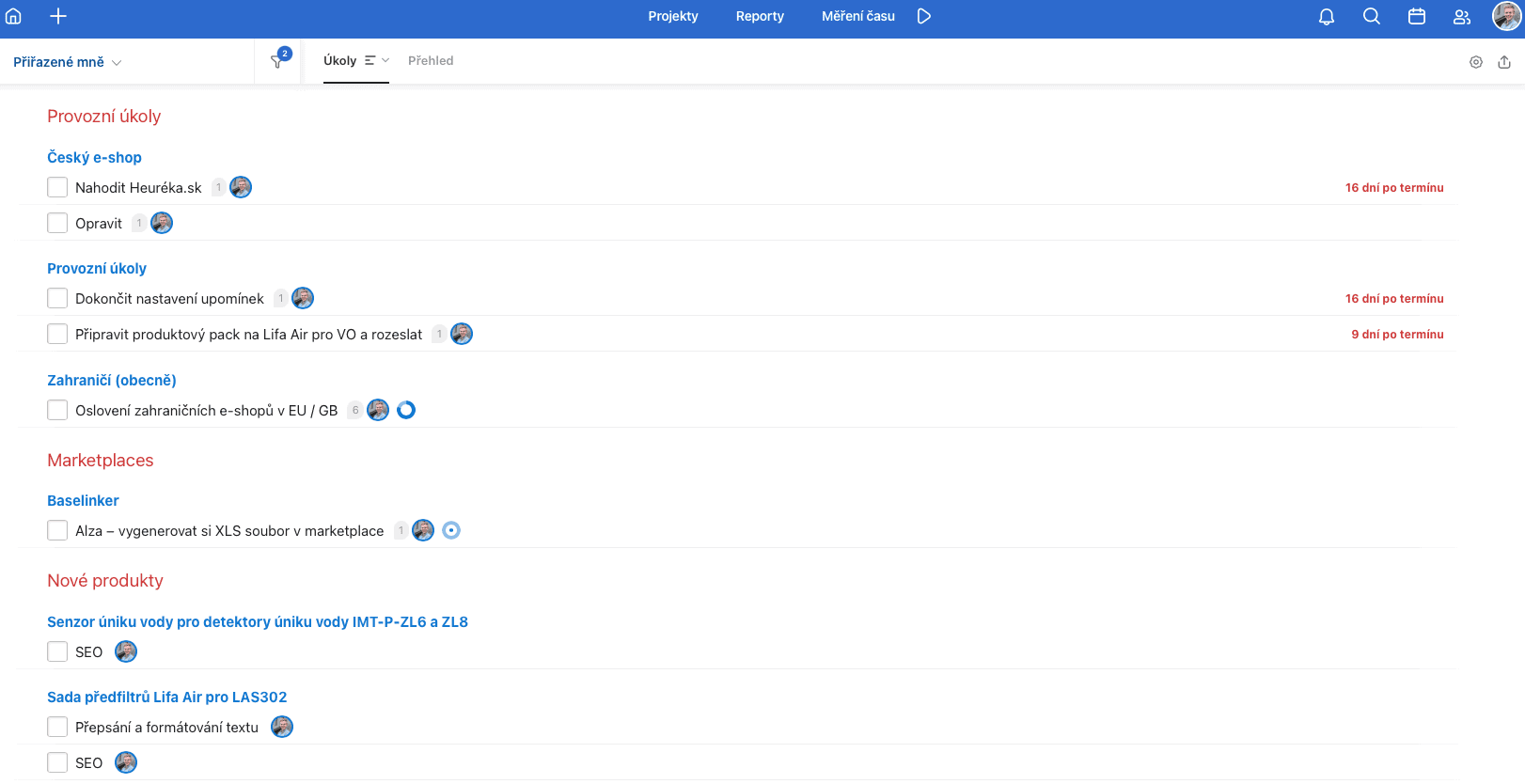
Projects, Reports, and Time Tracking
Above the Dashboard, you’ll find the main navigation — projects, reports, and time tracking.
- In Projects, you’ll see a list of all projects you’re working on, or you can create a brand new project.
- You can add tasks either from within a specific project view or with a single click on the + button found in the top-left corner of the screen once you’re logged in and viewing the Dashboard.
- Reports give you an overview of everything that’s happened across your projects — all user activity, work logs, and similar data. You can also create custom reports.
- In Time Tracking, you can start a timer for your work on any task. You’ll also find a complete overview of all hours worked.
Notifications, Users, Planning Calendar, Search, and Profile
- Notifications contain all alerts about tasks and activities that have taken place.
- In the Users section, you’ll see an overview of all team members and colleagues. You can easily invite a new member from here.
- We’ve already covered the planning calendar feature — it’s accessible with a single click and lets you schedule task deadlines.
- The search bar lets you find any task instantly. A really handy feature when you’ve got loads of tasks assigned and you’re looking for one specific one to work on.
- The last button opens a menu where you can access your profile, plan settings, payment and billing details, and more.
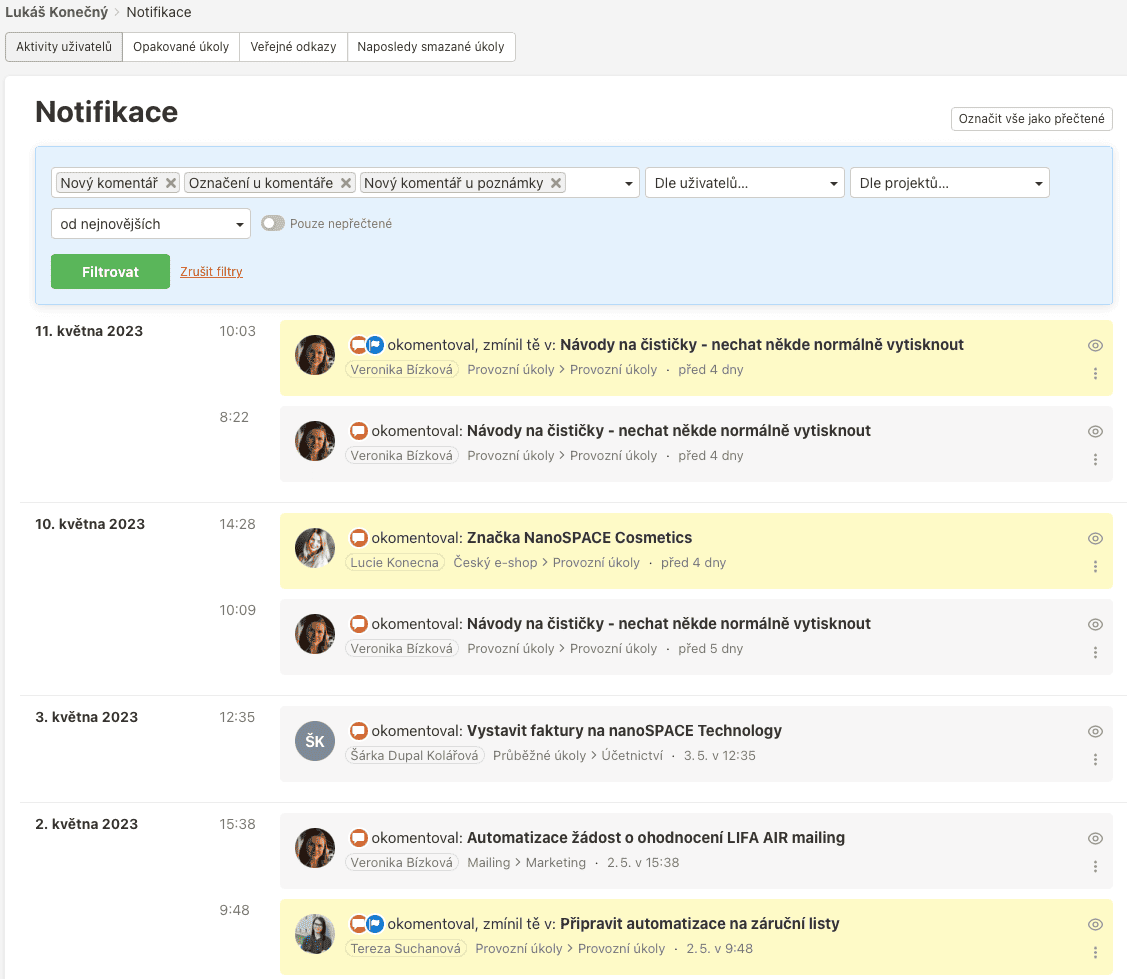
And that’s the entire Freelo user interface. Dozens of useful features are neatly organised into just a handful of buttons and navigation menus. Everything is within easy reach — no complicated clicking through endless menus.
Freelo Pricing Plans
After signing up, everyone can try Freelo for the first 14 days completely free. After that, you choose either one of the paid plans or the Free plan, which costs nothing at all. However, the Free plan limits you to 3 active projects with a maximum of 3 collaborators. All paid plans offer unlimited projects and collaborators — except for the Business plan, where the number of collaborators depends on your licence count.
Free Plan
- Up to 3 active projects, up to 3 collaborators, 500 MB storage, free.
Freelance Plan 🧑💻
- Designed for freelancers.
- Unlimited projects, unlimited users, mind map, Kanban columns and rows, time tracking, 15 GB data storage.
- Approximately €32 per month (billed annually).
Team Plan 👫
- For smaller businesses.
- Everything in the Freelance plan + admin features (reports, overviews, permission management, multiple people can create tasks/projects and manage users — functioning as department heads), 100 GB data storage.
- Approximately €72 per month (billed annually).
Business Plan 📊
- For larger companies with multiple departments.
- Team plan + more detailed reports and enhanced security, ERP integration option, 200 GB data storage.
- Approximately €135 per month for 20 users (billed annually). Each additional user approximately €7 per month.
Enterprise Plan 🏙️
- For large corporations.
- Unlimited users.
- Business plan + custom integrations, automation, SSO, SAML, SLA, dedicated success manager, data storage tailored to your individual needs.
- Approximately €1,600 per month (billed annually).
Freelo Compatibility with Other Apps
Freelo itself is available as a standalone app. There are versions for iOS and Android smartphones, as well as a desktop application. That said, the web version is fully featured and works perfectly.
When it comes to integrations with other apps, the options are impressively broad. Freelo is compatible with Gmail, Google and Outlook calendars, Trello, Make, Asana, Raynet, Basecamp 2, Supportbox, Fakturoid, Vyfakturuj, and iDoklad. Within the file storage, you can also work with services like OneDrive, Google Drive, and Dropbox.
Freelo Customer Support
Freelo’s customer support is also excellent. If you need an answer immediately, there’s a phone line available on weekdays from 9:00 to 16:00 CET. If it’s less urgent, you can reach support via email, and they’ll respond within 24 hours. In most cases, though, you’ll get a reply the same business day.
The responses are friendly and professional. You’ll get all the information you need, and the support team is happy to help resolve any issue.
Final Verdict
On a scale of 1 to 10, Freelo scores a solid 10. It’s a tool that offers a wealth of useful project management features — including some that competing tools simply don’t have. Time tracking is a great example: on similar platforms, it’s usually locked behind paid plans, but on Freelo, it’s available to everyone.
A nice bonus is that Freelo was built by a Czech team, so it’s fully optimised for the Central European market. However, the interface is also available in English, making it perfectly usable for international teams.
Even the prices for the advanced plans aren’t steep at all, especially when you consider the features and content you get in return. The exception is the Enterprise plan, but that’s designed for large corporations.
Our final verdict? We’d call Freelo one of the best project management software tools for small and medium teams.
Frequently Asked Questions
What is Freelo and what is it used for?
Freelo is a Czech online project management and team collaboration tool that helps you organize tasks, track progress, communicate with your team, and share files.
Is Freelo free?
Freelo offers a free basic version with limited features. For advanced functionality and larger teams, paid plans are available at various price points.
Is Freelo available in languages other than Czech?
Yes, Freelo is also available in English, making it easy to collaborate with international teams.
Can Freelo be integrated with other apps and tools?
Yes, Freelo offers integrations with several popular apps and tools, including Google Calendar, Slack, Toggl, and others.
What’s the difference between Freelo and other project management tools like Trello or Asana?
Freelo focuses on simplicity and intuitive use, which makes it ideal for small to medium-sized teams. Plus, Freelo is a Czech-made tool, which can be an advantage for Czech companies. While Trello and Asana are also popular project management tools, they offer different features and ways of organizing tasks.
Is Freelo available on mobile devices?
Yes, Freelo has mobile apps for both Android and iOS, allowing you to manage projects and tasks on your mobile devices.
What if I’m not satisfied with Freelo after I’ve already paid?
Freelo offers a 30-day money-back guarantee from the date of purchase. If you’re not happy with the features or service, you can request a refund.
Freelo Review – Project Management Tool
Summary
Freelo is the best task management tool for small teams I’ve ever tried. And trust me, I’ve tried a lot! It does everything you’d need from such a tool.
Tips and Tricks for Your Vacation
Don’t Overpay for Flights
Search for flights on Kayak. It’s our favorite search engine because it scans the websites of all airlines and always finds the cheapest connection.
Book Your Accommodation Smartly
The best experiences we’ve had when looking for accommodation (from Alaska to Morocco) are with Booking.com, where hotels, apartments, and entire houses are usually the cheapest and most widely available.
Don’t Forget Travel Insurance
Good travel insurance will protect you against illness, accidents, theft, or flight cancellations. We’ve had a few hospital visits abroad, so we know how important it is to have proper insurance arranged.
Where we insure ourselves: SafetyWing (best for everyone) and TrueTraveller (for extra-long trips).
Why don’t we recommend any Czech insurance company? Because they have too many restrictions. They set limits on the number of days abroad, travel insurance via a credit card often requires you to pay medical expenses only with that card, and they frequently limit the number of returns to the Czech Republic.
Find the Best Experiences
Get Your Guide is a huge online marketplace where you can book guided walks, trips, skip-the-line tickets, tours, and much more. We always find some extra fun there!


